 Workflow
How it works
Five steps, from request to done
Every job in Vector Workflow goes round the same five steps, from the request to the finished part. Here is what you do at each one, what Vector does for you, who can see it, and what stays on the record. Words in bold are the app’s own buttons.
Request
From a link or the app, with a project code if needed and a need-by date
- What you do
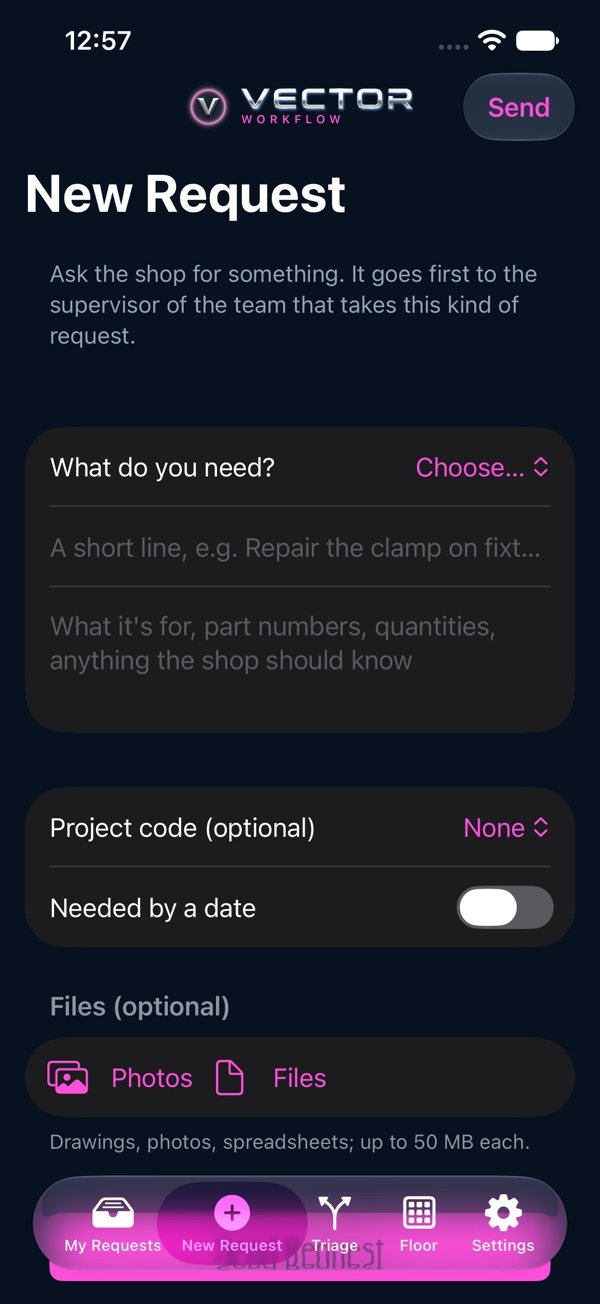
Open New request, or the link your plant shares for each kind of request: say what you need, give it a title, add details and files, and the project code, capital number and need-by date when your plant asks for them. Then Send request.
- What Vector does
- Numbers it (R-0001 and up) and puts it with the right team’s triage, waiting there.
- Emails that team’s supervisor.
- Who sees it
You, the team it’s with, leaders and admins; later, material, the floor and quality as the job reaches them. A capital number is seen only by you and the people who see costs.
- What goes on the record
Every step of the request in its history, with who and when: sent, routed, notes, files, the work order. Nobody can change the history, and a file is withdrawn with a reason, never deleted.
Triage
The first team’s supervisor routes it
- What you do
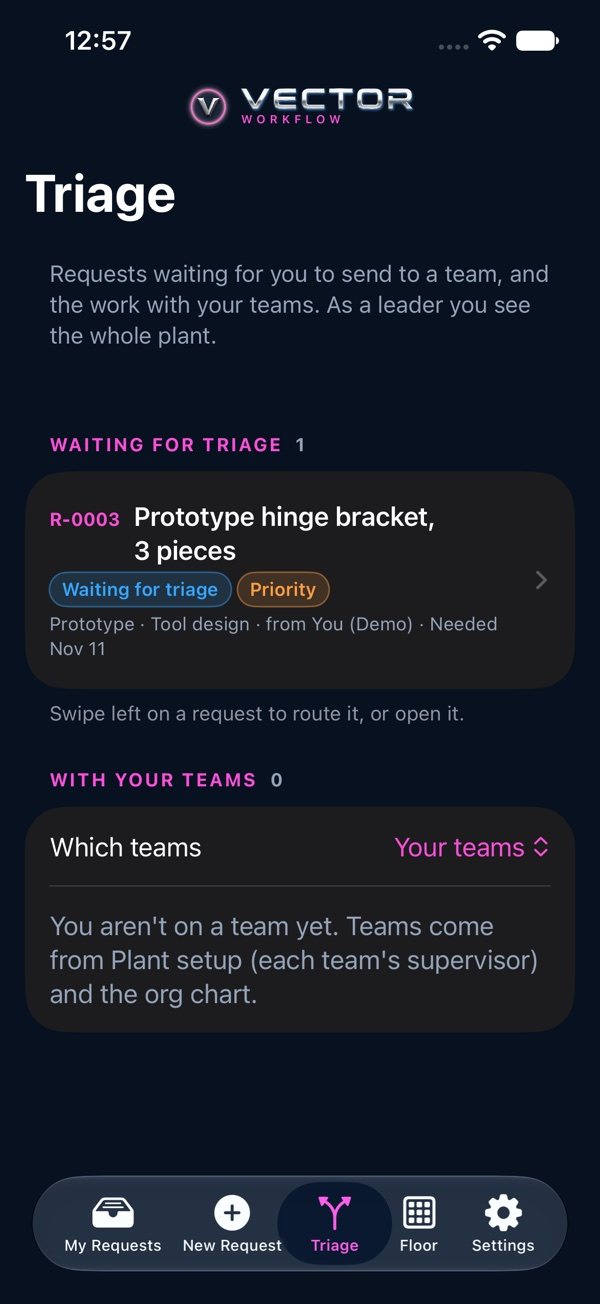
The supervisor opens Triage and sends each request to the team that does it, with Route, marking priority where it matters. On the request, Move it along adds notes, sends it on, puts it on hold or escalates it with a note.
- What Vector does
- Routing moves it to “With the team” and emails the new team’s supervisor.
- A request type with no triage team goes to the leaders.
- Who sees it
The same people as step 1. The supervisor of the team it’s with, any leader or an admin routes it.
- What goes on the record
Each route, priority, hold and escalation, with who, when and the note.
Plan
Parts list from Excel, a source and route for each part
- What you do
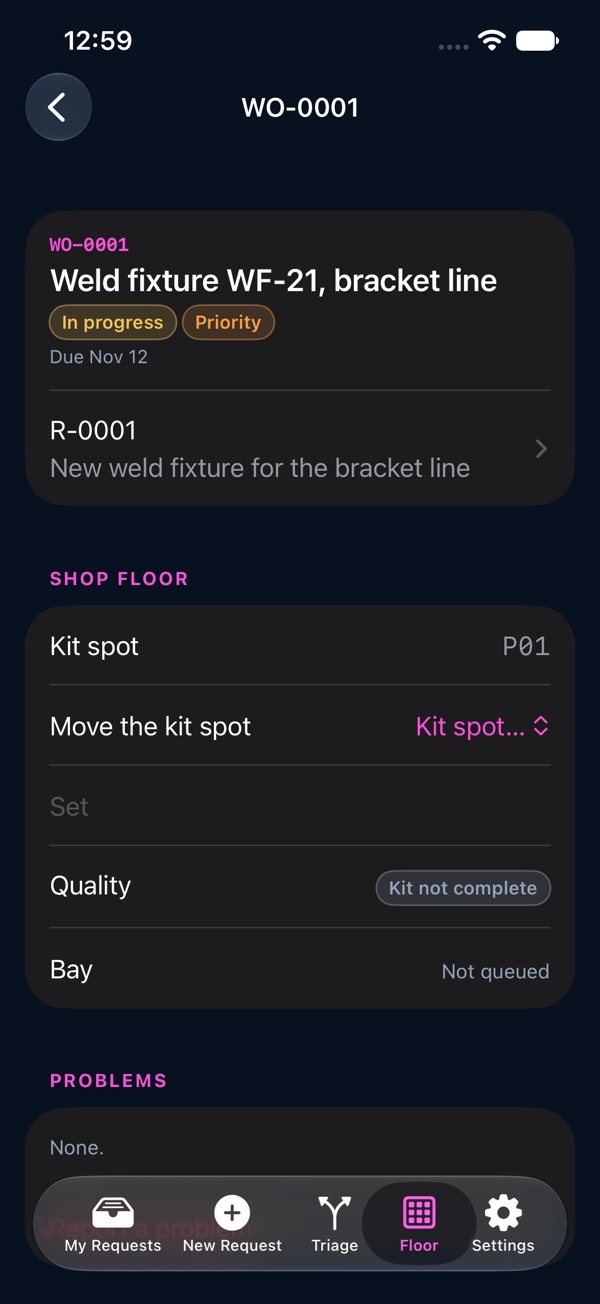
Open a work order and add the parts: one at a time, pasted from a spreadsheet, or for a big job, Import the parts list (.xlsx or .csv, with levels). Each part comes from stock, is bought, made, or sent from a sister plant; made parts get their operations at a machine, an outside vendor or a move. Then Release to the shop.
- What Vector does
- An import checks every row and loads all of it or none of it.
- Release waits until there’s a part, every made part has its operations, and every made part has a drawing when the project asks for one.
- Who sees it
Whoever sees the request. The team it’s with, leaders and admins build the work order; material sees it once it exists.
- What goes on the record
Removed parts and replaced routes are kept, not erased; removing a part after release needs a reason.
Make
A scan at every machine, move and vendor
- What you do
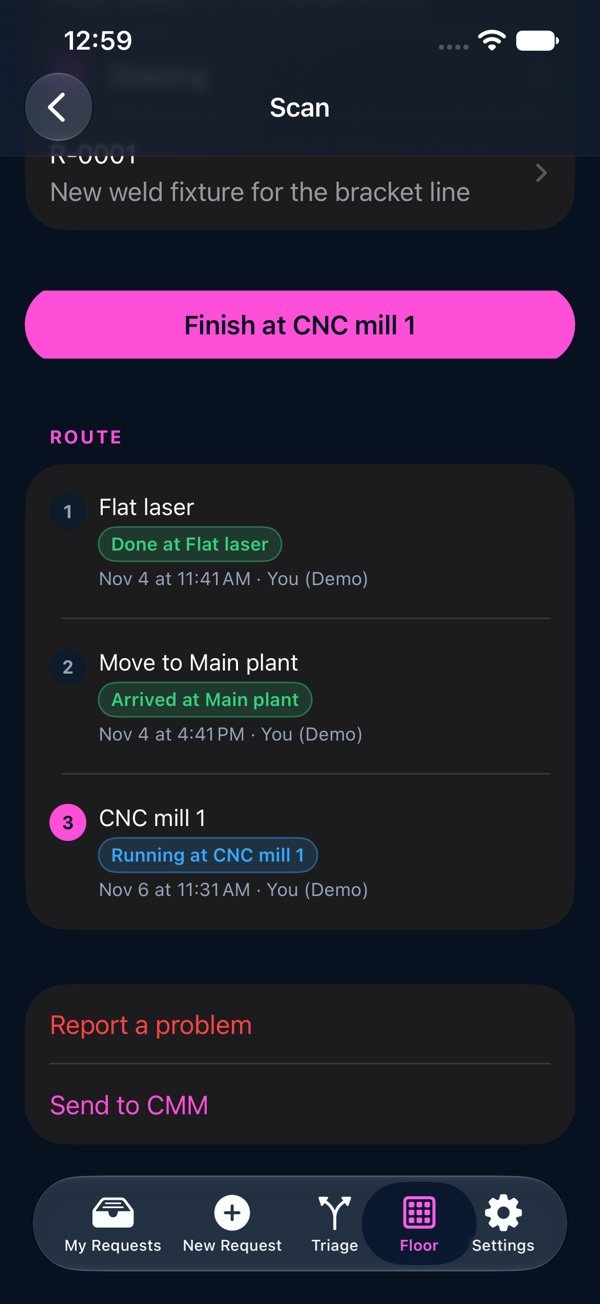
Scan the traveler at each step: on Scan, or with a plug-in scanner on a screen set to its station, one scan starts the step and the next finishes it. Send parts to a vendor with the promised-back date, and scan them back. Something wrong? Report a problem.
- What Vector does
- The first scan starts the work order; the last step puts the part in its kit.
- Hours run from start to finish; a run over 12 hours is flagged for the supervisor.
- Each step has a due date from its estimate and your working days. Late, the owner gets an email the first morning, then their manager, then the next level up.
- An open problem holds the part until it’s dealt with.
- Who sees it
The machine’s team, leaders and admins work its steps; material, the request’s team or a leader handle moves and vendors.
- What goes on the record
Every scan with who, when and where. You can undo your own last scan within 15 minutes (leaders any time) until the part moves on; an undone scan is marked, not erased. Corrected hours keep the clocked ones.
Check and build
Quality check, the bay, validation if needed, done
- What you do
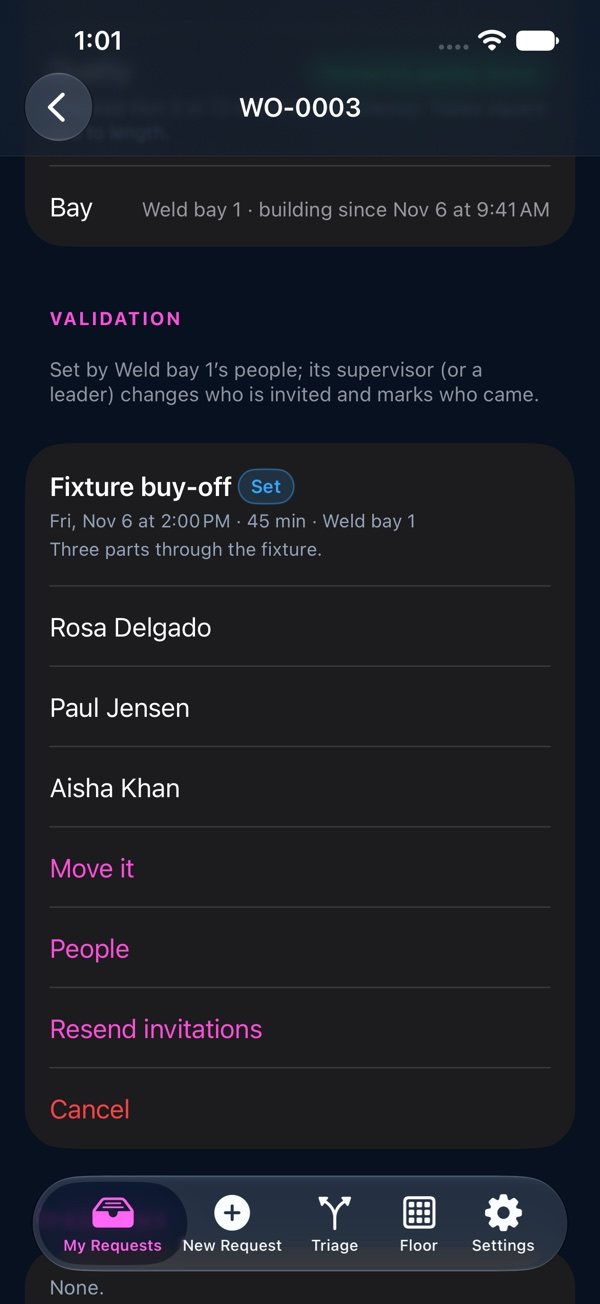
Quality checks the complete kit: Pass, or Fail with a note. The bay Pull the kits and marks it Built. If it needs proving, set a validation: who, when and where, then passed or failed. Then mark the work order and the request done.
- What Vector does
- Only a complete kit can pass, and a pass holds only while the kit is unchanged. A bay can’t pull a kit that hasn’t passed.
- Validation invitees get an email with a calendar invitation; a failed validation opens a problem with the bay’s team.
- Who sees it
Quality teams, leaders and admins check; the bay’s team builds. Everyone who sees the request sees where it is.
- What goes on the record
Every quality result, bay step and validation, with who and when.
See it with your own shop
Try the Demo, or book thirty minutes with your own machines and teams.