 Engineer

How it works
Five steps, from request to gate
Every deliverable in Vector Engineer goes round the same five steps, and every gate is decided on them. Here is what you do at each one, what Vector does for you, who can see it, and what stays on the record. Words in bold are the app’s own buttons.
Request it
What’s needed, from whom, and by when
- What you do
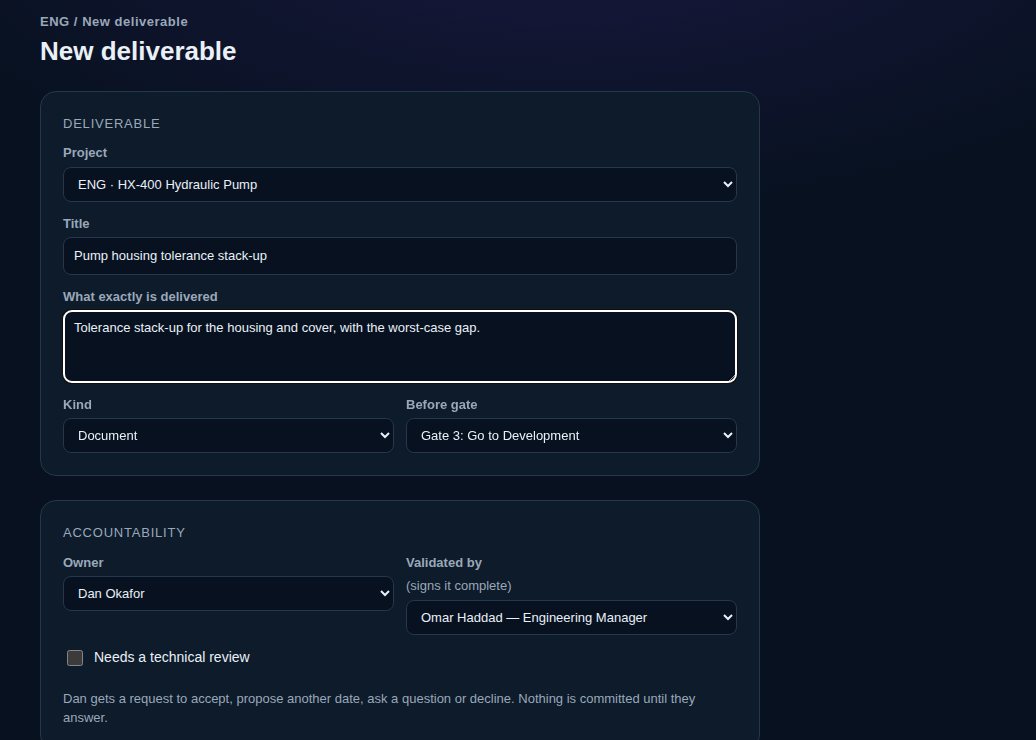
Make a new deliverable: a title, what exactly is delivered, the kind, the gate it comes before, the owner, who validates it (never the owner), a technical reviewer if it needs one, the date and a definition of done. It’s Commit when the work is yours and Send Request when it’s someone else’s. Inside a deliverable, Request What I Need asks for an input it depends on. From the web, you can also ask a supplier outside the company.
- What Vector does
- Work you take on yourself is accepted at once; work for someone else waits for their answer.
- The validator starts as the owner’s manager up the org chart, then the lead, then leadership.
- An outside supplier gets a link by email; people inside find it in My Work.
- Who sees it
Everyone who can see the project: the people on it and the managers above them, the lead, leadership and your company’s admins.
- What goes on the record
A History line: who asked whom for what, by when. Deliverables are never deleted, only cancelled, and their number and project never change.
Promise it
The owner accepts, or proposes a real date
- What you do
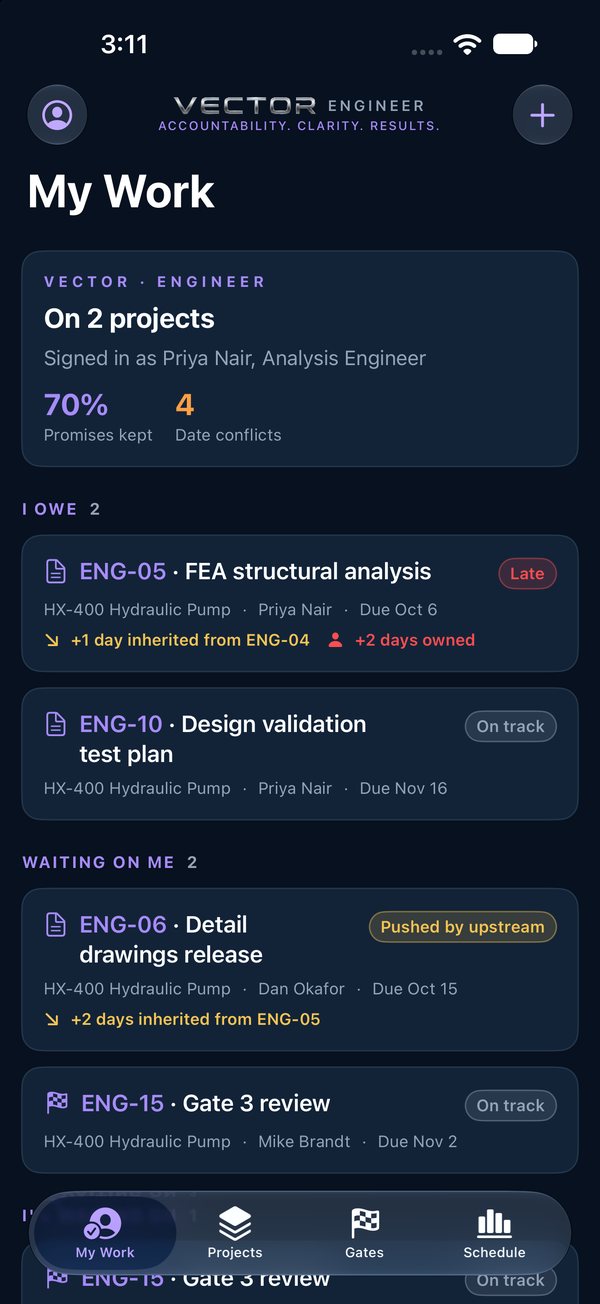
The owner taps Respond: Accept (with their working time), a new date, a question, or decline. The person who asked can accept the new date, answer or push back, ask someone else, or withdraw.
- What Vector does
- Accepting makes the date a promise and accepts the requests linked to it.
- Only the owner answers, and only the asker accepts a new date or withdraws.
- Who sees it
Everyone who can see the project.
- What goes on the record
Every answer in History, with its note. Nobody is handed a date: owners promise their own.
Work it
Checklist, files and versions as it moves
- What you do
Start Work, tick the definition of done, and add the work product (a file, a photo or a picture from your library), each as the next version. Running late? Flag a Slip with the extra time, the reason and what happened.
- What Vector does
- Each file is the next version. Adding one after a sign-off sends the work back to In progress, to be signed again.
- A slip moves the owner’s dates; the work waiting on it shows the days as inherited.
- Who sees it
Everyone who can see the project can open the work product. Only the owner starts, ticks and flags.
- What goes on the record
Every version, who added it and when. A file added by mistake is withdrawn with a reason and shown struck through, never deleted. Slips and History are only ever added to.
Sign it
Signed complete by someone else, with a technical check when it needs one
- What you do
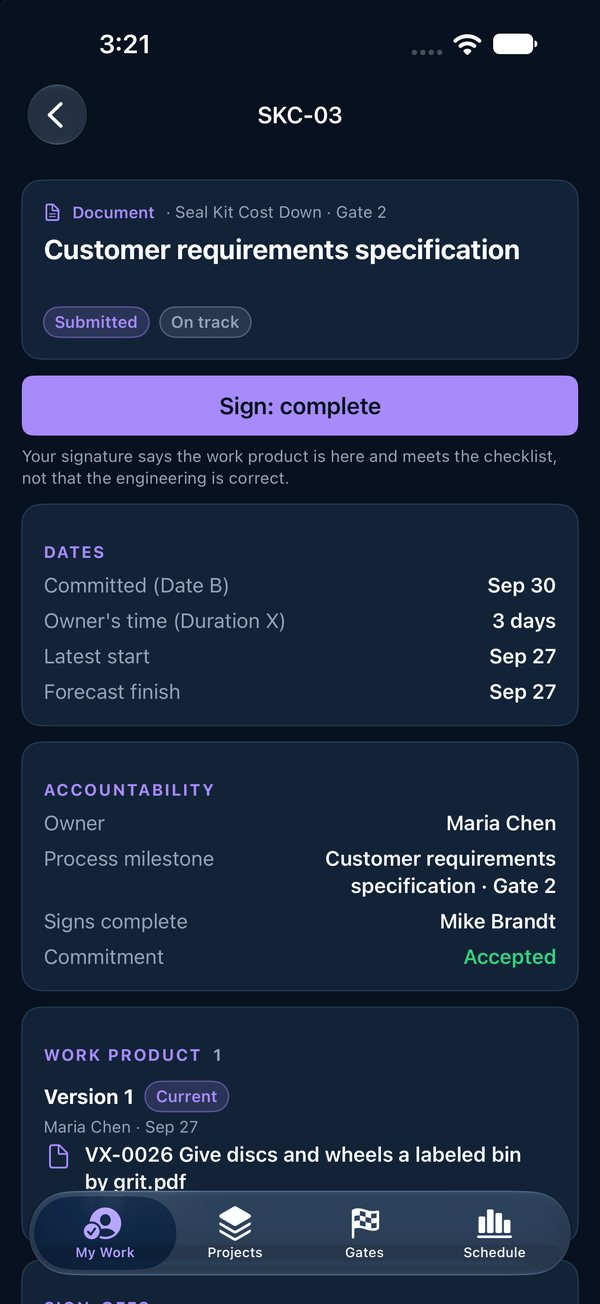
The owner taps Submit for Sign-Off once there’s a work product and every checklist item is ticked. The validator signs Complete; a technical reviewer, if one is named, signs Technically Correct.
- What Vector does
- Each signature covers the version that was submitted, and the checklist locks.
- With every signature in, the work is verified and the work waiting on it can start.
- The owner can never sign their own work.
- Who sees it
Everyone who can see the project. Only the named signers sign.
- What goes on the record
Who signed which version, and when. Sign-offs can’t be changed or deleted, a signed version can’t be withdrawn, and nothing more can be added once it’s verified.
Pass the gate
Go, Hold, Recycle or Kill, on the record
- What you do
The gatekeeper opens the gate and records the decision: Go, Hold, Recycle or Kill, always with a note saying why. Recycle names the work to send back and the rework date.
- What Vector does
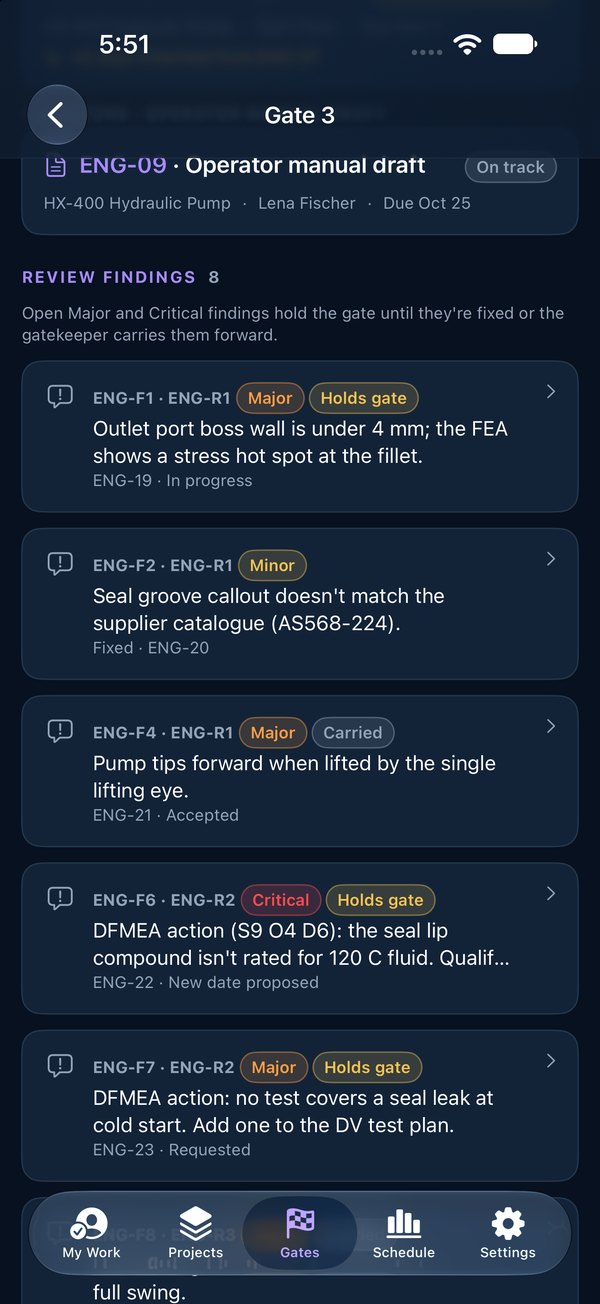
- Go and Recycle wait until the gate is ready: every deliverable verified, every milestone taken on, no open Major or Critical finding that wasn’t carried forward, and no FMEA row holding it. Until then only Hold and Kill are offered.
- Recycle reopens the chosen work; its owner accepts the rework like any request.
- Ending a hold moves every open date by the days on hold. Kill makes the project read-only. Go on the last gate closes it.
- Who sees it
Everyone who can see the project. Only the named gatekeeper decides.
- What goes on the record
Every gate decision with who, when and the note. Decisions are never changed or deleted.
Try it on one of your own projects
Thirty minutes, with a project you’re running now.