 Operations Pro

How it works
Five steps, for every problem
Whether it came from an audit walk or straight from a manager, every item in Vector Operations Pro goes round the same five steps. Here is what you do at each one, what Vector does for you, who can see it, and what stays on the record. Words in bold are the app’s own buttons.
Raise it
What needs attention, and where
- What you do
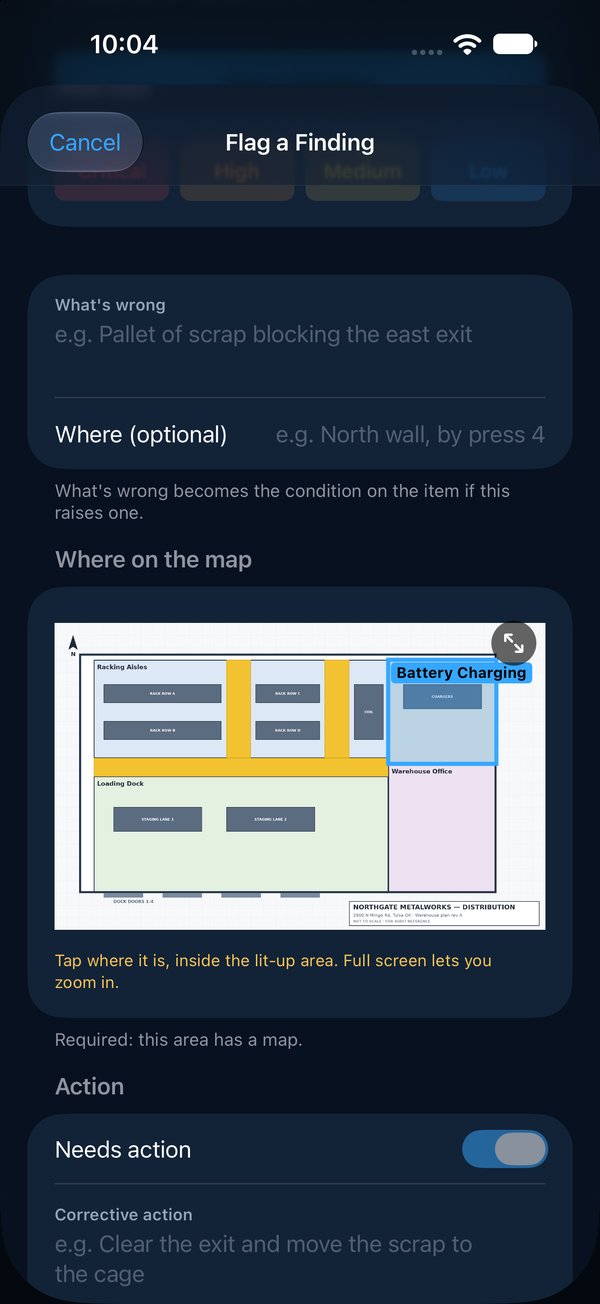
On a walk, tap Flag a Finding: pick the check it falls short of, how bad it is (Critical, High, Medium or Low), say what’s wrong, and pin it on the area’s map. A photo is optional, and strongly suggested: it’s what someone who wasn’t there can check. If it needs fixing, say what the fix is, who owns it and by when.
Not on a walk? Raise an Item from the Dashboard, My Work or the Walk tab: a title, the condition you found and a score.
- What Vector does
- Findings on a walk become items when the leader submits the walk.
- Each item gets your company’s next number, VX-0001 and up. It never changes, so “VX-0024” means the same thing to everyone.
- Once a walk has started, findings and photos are kept on the phone and sent when a signal returns. Starting and submitting a walk, and raising an item outside a walk, need a signal for a moment.
- Who sees it
Everyone with access to that site, the person who raised it, its owner, and your company’s admins.
- What goes on the record
Who flagged each finding and when. A finding withdrawn during the walk stays on the record, counting for nothing. The item’s history starts the moment it’s raised.
Own it
One person, one due date
- What you do
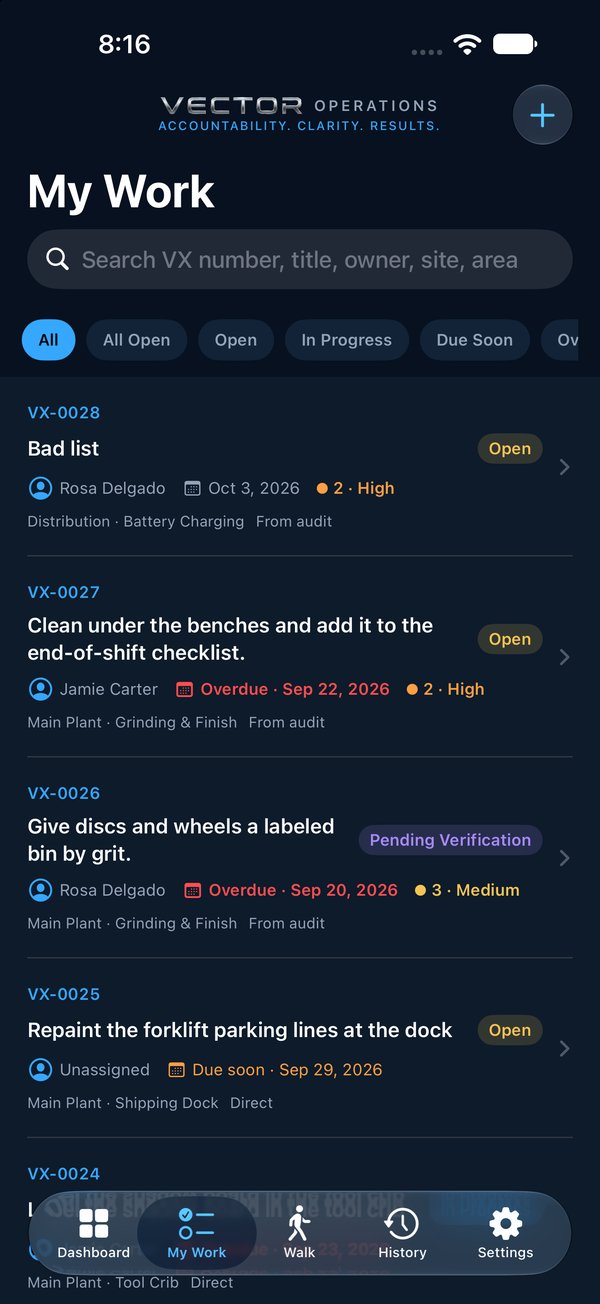
Give it to one owner: someone on your team, or an outside contractor or vendor by name and email. Set the due date. Notify the owner is on unless you turn it off.
- What Vector does
- Emails the owner: “VX-0024: … is yours”. A reply comes back to the person who gave it. Items from a walk are emailed when the walk is submitted.
- People on your team find it in My Work until it’s done.
- If it runs past its date, Vector emails the owner’s manager, then the next level up each round (every 5 days unless your admin sets another interval), copying the owner and the person who stays accountable. Work waiting for verification doesn’t escalate.
- Who sees it
The same people as step 1. An outside owner doesn’t sign in: they get the emails. Managers above the owner hear about it by email once it’s overdue.
- What goes on the record
Every change of owner, in order, never rewritten. When the owner was told. The first owner stays accountable by name, even after handing it on.
Work it
Notes and photos as it moves
- What you do
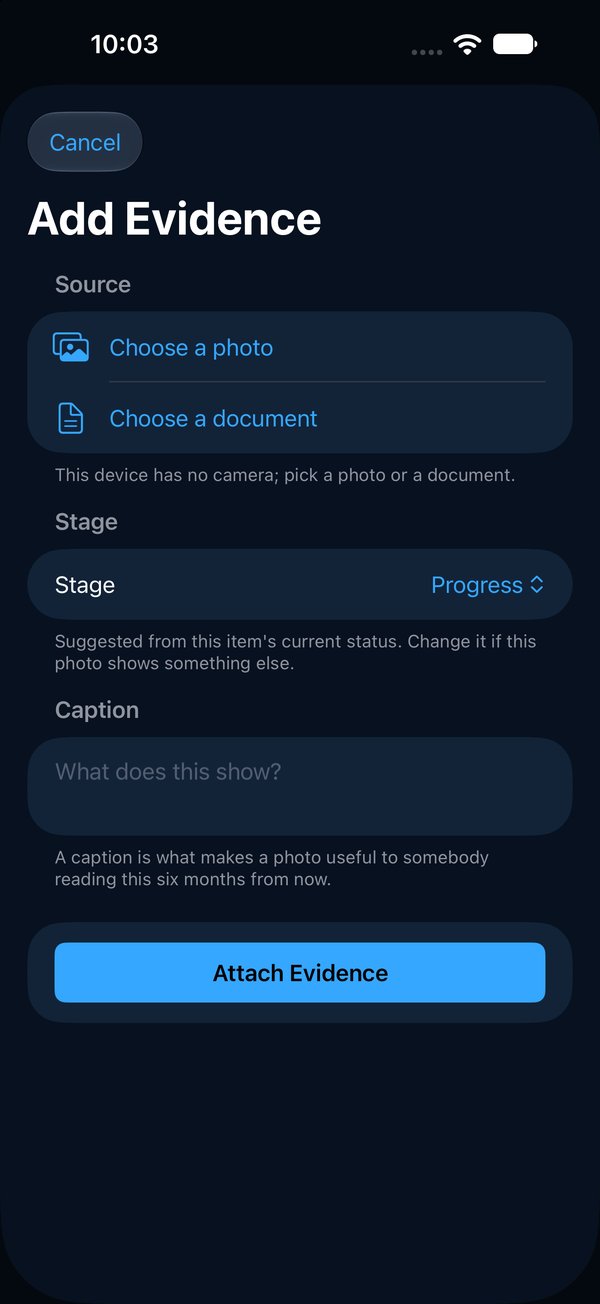
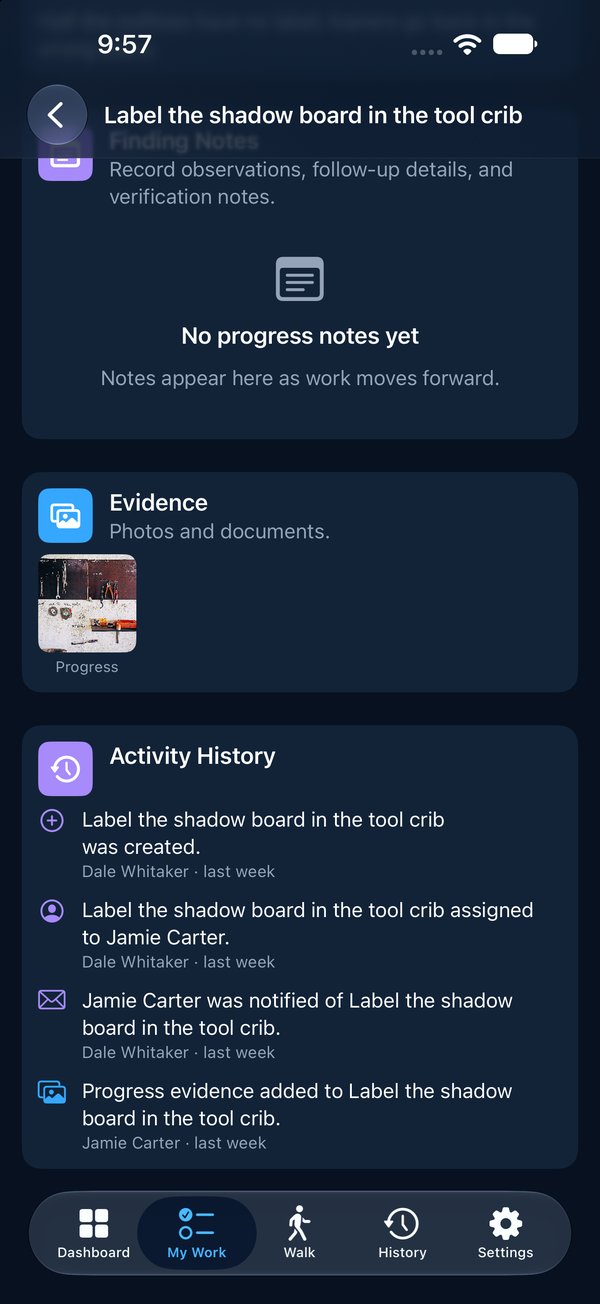
On the item, Add Progress with a note and Add Evidence: a photo or a document, marked Before, Progress, After, Verification or Supporting. Need someone else to do it? Delegate it with a note. When the work is done, Submit for Verification.
- What Vector does
- The first note moves the item to In Progress; submitting moves it to Pending Verification.
- Delegating emails the new owner.
- Every photo is stamped with who added it, when, and its stage.
- Who sees it
Everyone who can see the item (step 1).
- What goes on the record
Notes can’t be edited or deleted. A photo added by mistake can be withdrawn, and the withdrawal stays on the record. Due-date changes are logged, and so is every hand-on, with the person who handed it on still accountable.
Prove it
A photo of the fixed condition
- What you do
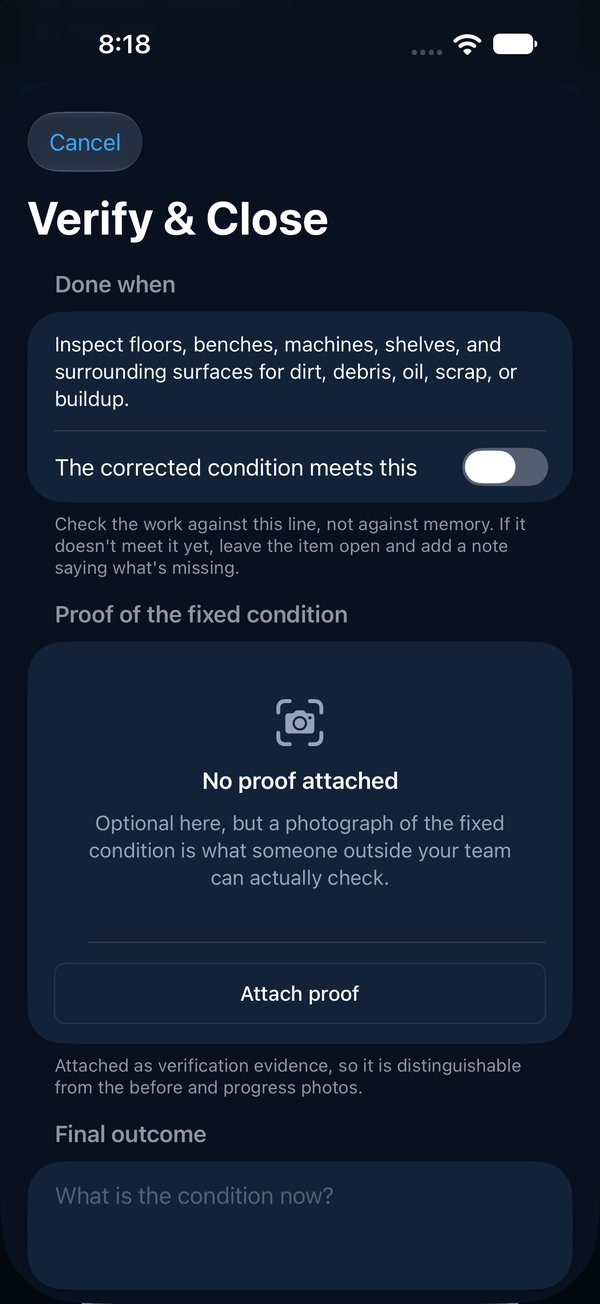
In Verify & Close, attach the Proof of the Fixed Condition: a photo, or a document, of the corrected condition, checked against the item’s Done when.
- What Vector does
- If the program has Proof required to close turned on, the item can’t close without proof. The app checks, and so does the database.
- After a reopen, only proof added since the reopen counts.
- Without that setting, proof is optional.
- Who sees it
Everyone who can see the item (step 1), and anyone you give its evidence pack to.
- What goes on the record
The proof, marked Verification, with who added it and when. The last proof on a closed item can’t be withdrawn.
Verify it
Checked, and closed on the record
- What you do
Record the final outcome, a final score from 1 to 5 and your verification notes, confirm the corrected condition meets Done when, and Verify & Close. If the problem comes back, Reopen Item with a reason.
- What Vector does
- Records who closed it and when.
- A check by someone other than the owner carries the most weight. The owner can close their own work, but the app tells them first and marks it self-verified; so does a manager closing work they handed on.
- Who sees it
The people from step 1 can close it. The closure shows on the item, its evidence pack and the walk pack.
- What goes on the record
Who closed it and when, and whether it was self-verified, on the item, its packs and its history. A reopen keeps the earlier closure: a note says who reopened it, why, and when it was closed before.
See it on your own floor
Thirty minutes, on a phone, with your own areas.