
VectorXPro
← Back to Vector Workflow

Help Center / Signing In

Signing In

One Vector account, on the web today and on your phone next.

One Vector account

Vector Workflow uses the same Vector account as the other Vector apps. Sign in on the web at vectorxpro.com/workflow/app with your email and password, at a desk, on a shop-floor screen or in your phone’s browser. The Vector Workflow app for your phone (iPhone or Android) is next, and signs in the same way.
Accept an invitation

  1. 1Open the newest invitation email from notifications@vectorxpro.com.
  2. 2Press “Choose your password”. It opens a page on the web; nothing is used up yet.
  3. 3Type a password of at least 8 characters twice, and press the button. You’re signed in to Vector Workflow.

The link works once, within an hour, and sending it again cancels the earlier email. If it has expired, ask whoever invited you (your supervisor or your plant’s admin) to send it again.

Have an invitation code?

If the email’s button won’t open, use the code instead. In the Vector Workflow app on your phone, tap “Have an Invitation Code?” on the sign-in screen, enter the address the invitation was sent to and the 6-digit code from the newest invitation email, then choose your password.

Settings, reload and sign out

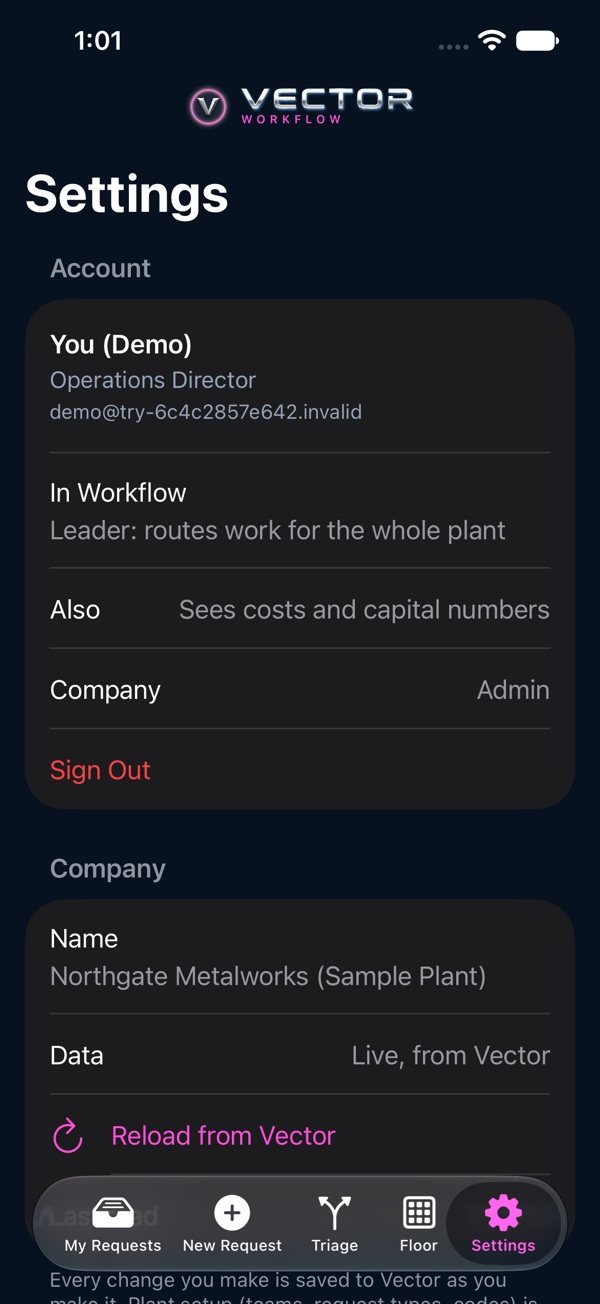
Settings opens from your initials at the top right. It shows who you’re signed in as, your plant and your roles, with “Reload from Vector” and “Sign Out”. The menu (☰) holds every page, Settings and Help when the window is narrow.

When a new version is released, a bar says a new version of Vector Workflow is ready. Press “Reload”.

Settings: who you're signed in as, your company, Reload from Vector and Sign Out