Schedule a Formal audit ahead, tell everyone, and stop if the area isn't ready.
Schedule a Formal audit
A Formal audit can be announced weeks ahead, so the area knows what it will be held to and the record shows who was told what, and when. Admins schedule anywhere; site managers at their sites.
1Open History and tap Schedule a Formal Audit, under Upcoming audits. (Or on the website: vectorxpro.com/team → Audits.)
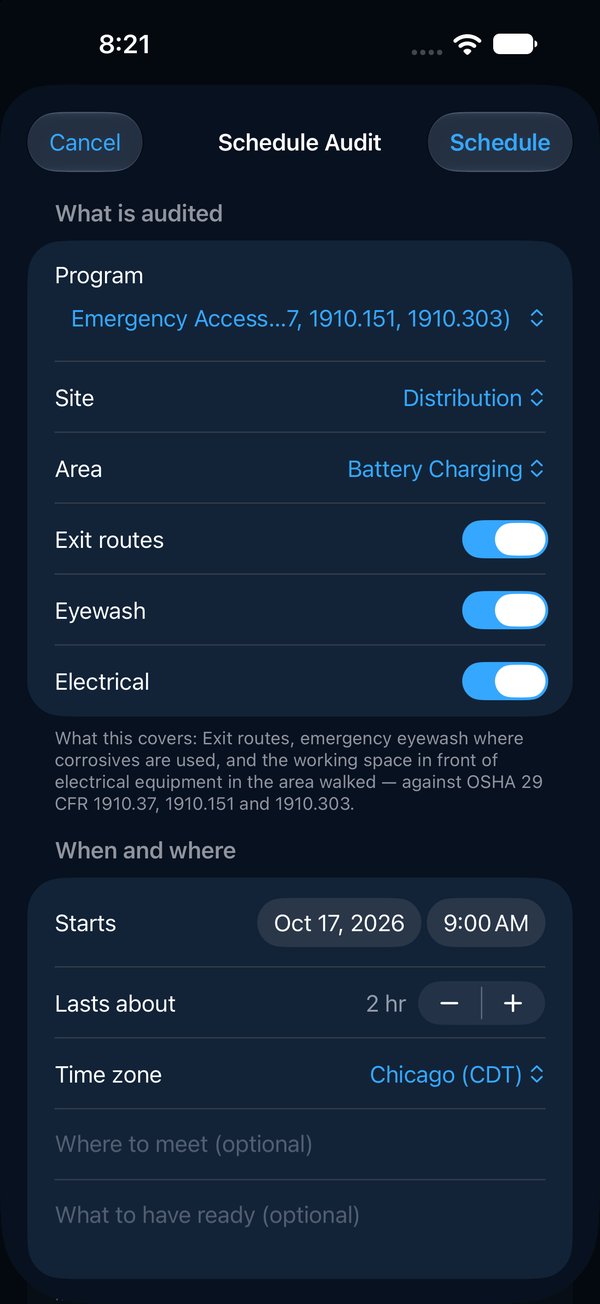
2Choose the Formal program, the site and area, and the sections it covers.
3Set when it starts, how long it lasts and the time zone. Add where to meet and what to have ready, if it helps.
4Choose the lead auditor.
5Set the notice: 14 days before unless you change it. 0 sends it at once.
6Turn on the stop rule if you want one (below).
7Under Team and copies, add auditors, observers, and anyone to copy on the emails, such as a customer or a registrar.
8Tap Schedule.
Only Formal programs are announced. Walk a Quick one any time.
238
Who is told, and what
The lead, the team, the site's managers and everyone copied get each email. The notice arrives on its day with a calendar invite, and lists every check the audit covers, what good looks like and what each is based on. A reminder goes the day before. If the time, place, scope or team changes after the notice, everyone gets an update to the same calendar entry; if it's canceled, they get the reason. When the walk is submitted, the result goes to all of them.
1Open the audit from Upcoming audits.
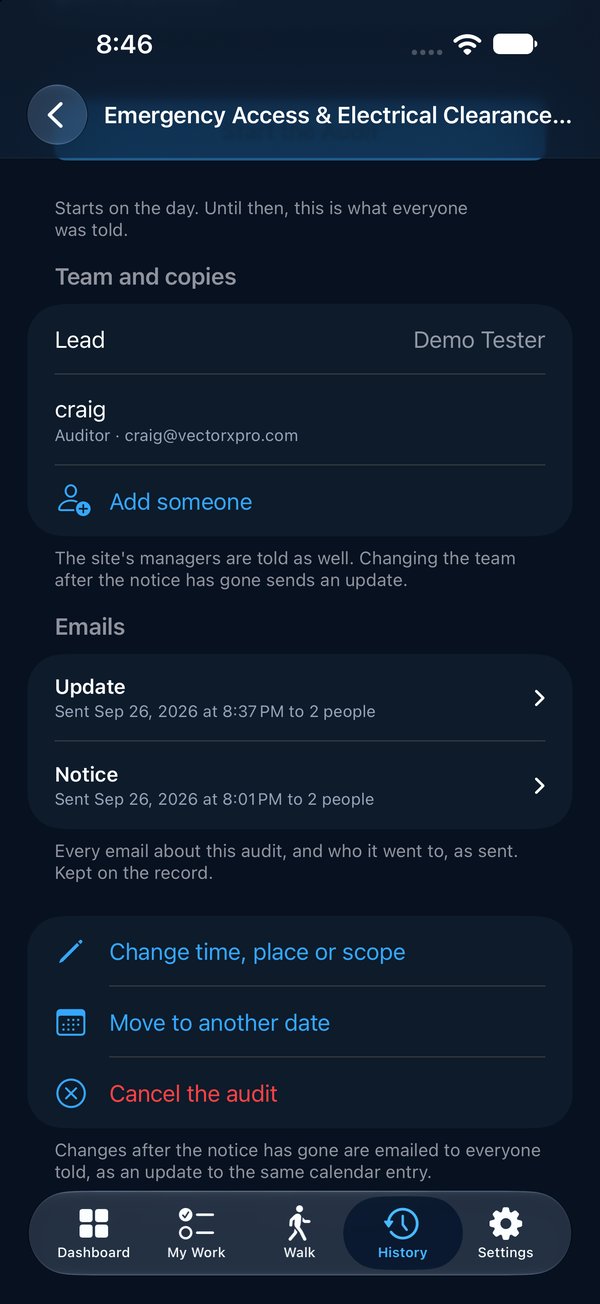
2Scroll to Emails to see every email: when it went, and tap one to see who it went to.
The emails and their recipients are kept on the record, as sent. Demo addresses (ending .invalid) are never emailed.
2
Start it on the day
1On the day, open the Walk tab. The audit is under Announced for today.
2Open it and tap Start the Audit.
3The walk opens with its sections, and its auditors already on the team.
The lead, an auditor on its team, an admin or the site's manager can start it. Not before its day.
The stop rule and Not ready
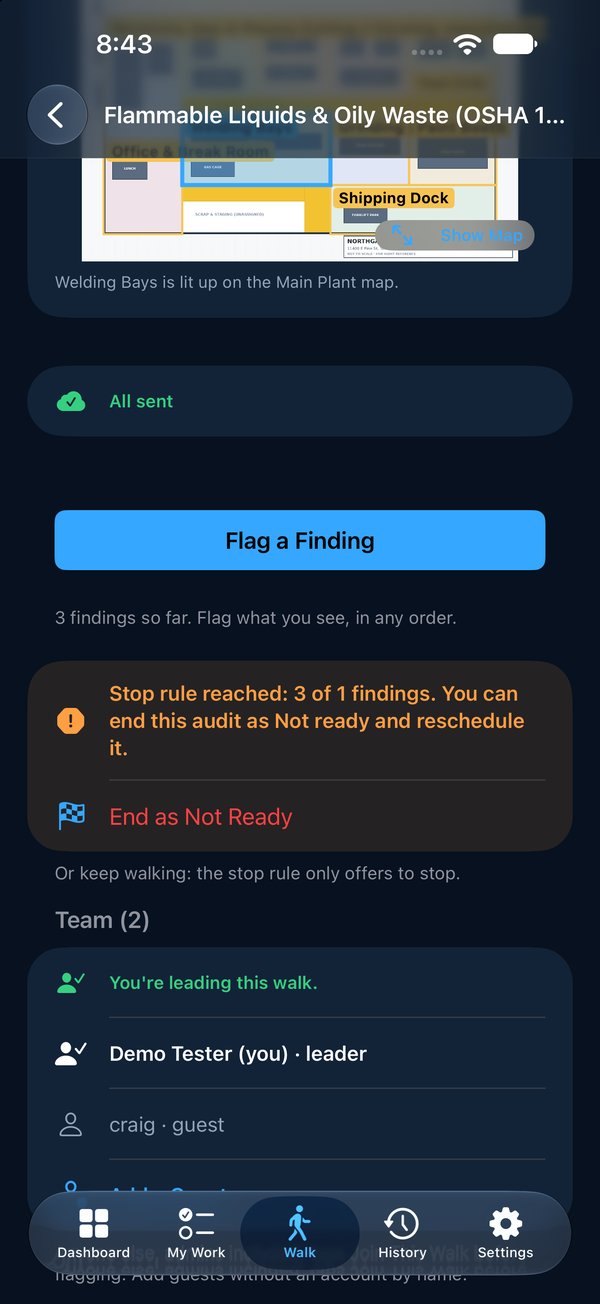
A stop rule says: if this many findings are recorded, the area isn't ready for the audit. When it's reached, an orange banner on the walk offers End as Not Ready. The lead can end there, or keep walking; the rule only offers.
1Tap End as Not Ready and say why. Vector suggests the reason.
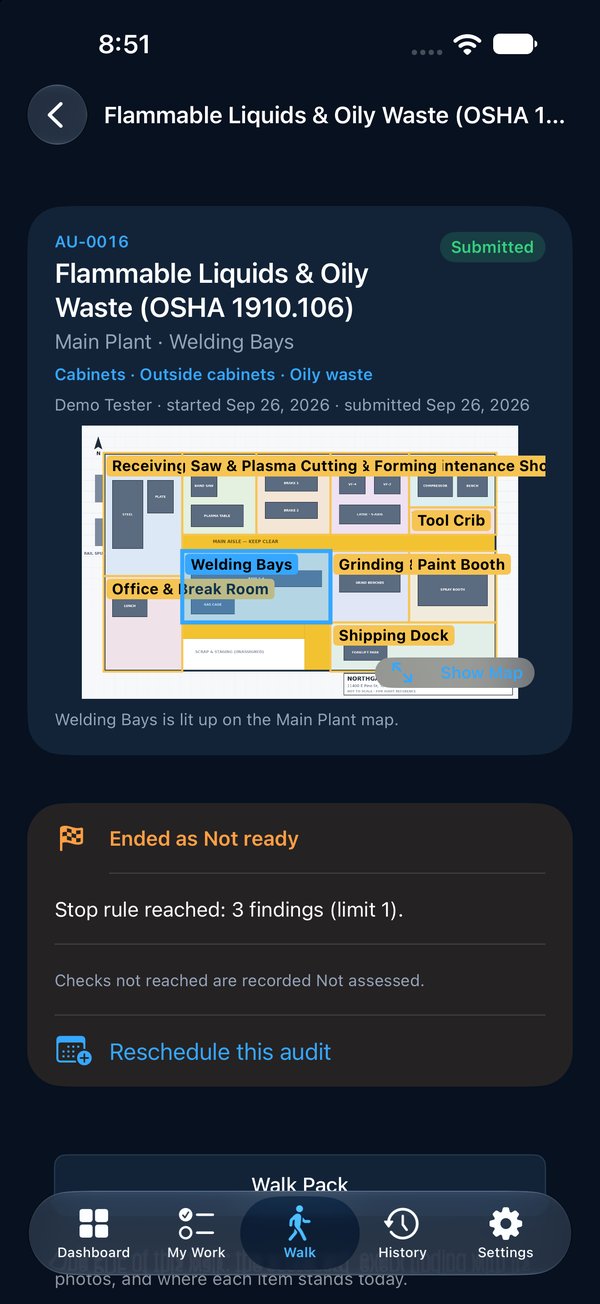
2Tap End. The walk is submitted as Not ready, and its findings raise their items as on any walk.
3Checks with no findings are recorded Not assessed, never Meets standard, and left out of the score.
4Everyone told gets the result. On the finished walk, tap Reschedule this audit to set the new date; it keeps the team and points back to this one.
1
Change, move or cancel
Open the audit from Upcoming audits. Admins and the site's manager can change its time, place or scope, move it to another date, or cancel it with a reason. Anyone already told hears about the change.

 Operations Pro
 238
238