
 Operations Pro
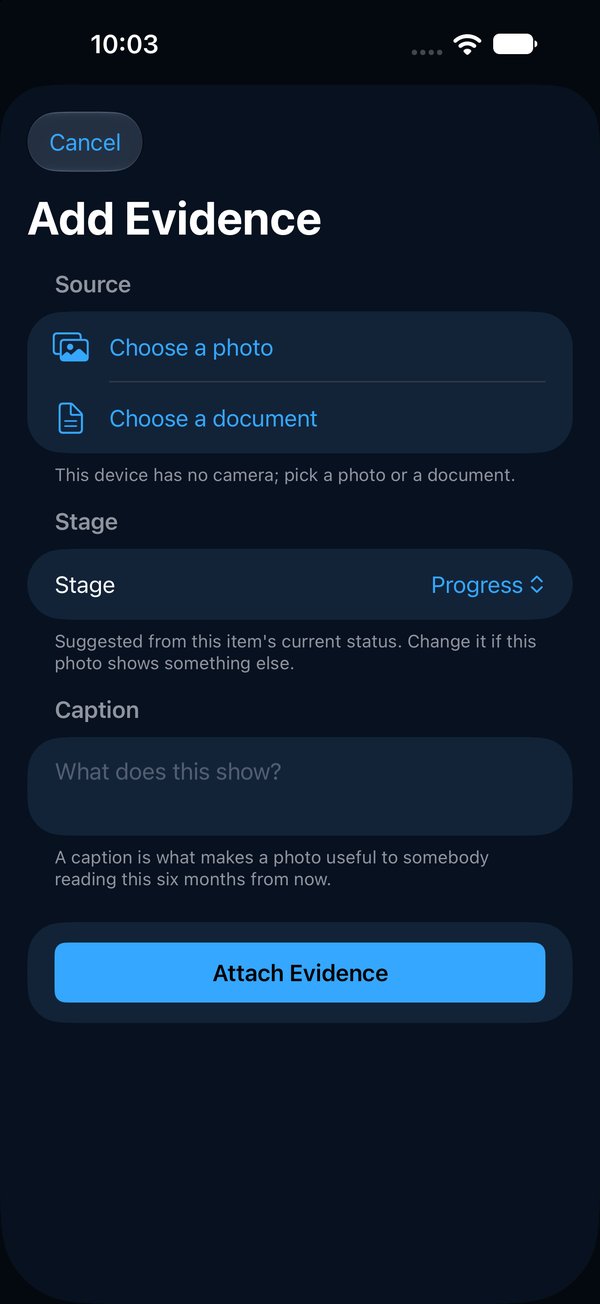
Add a photo or document
- 1Open the item and tap Add Evidence.
- 2Tap Take a photo to use the camera, or Choose a photo or Choose a document.
- 3Add a caption that says what the picture shows.
- 4Tap Attach Evidence.
 234
234Help Center / Photos & Evidence
Take photos, attach documents, and what each stage means.
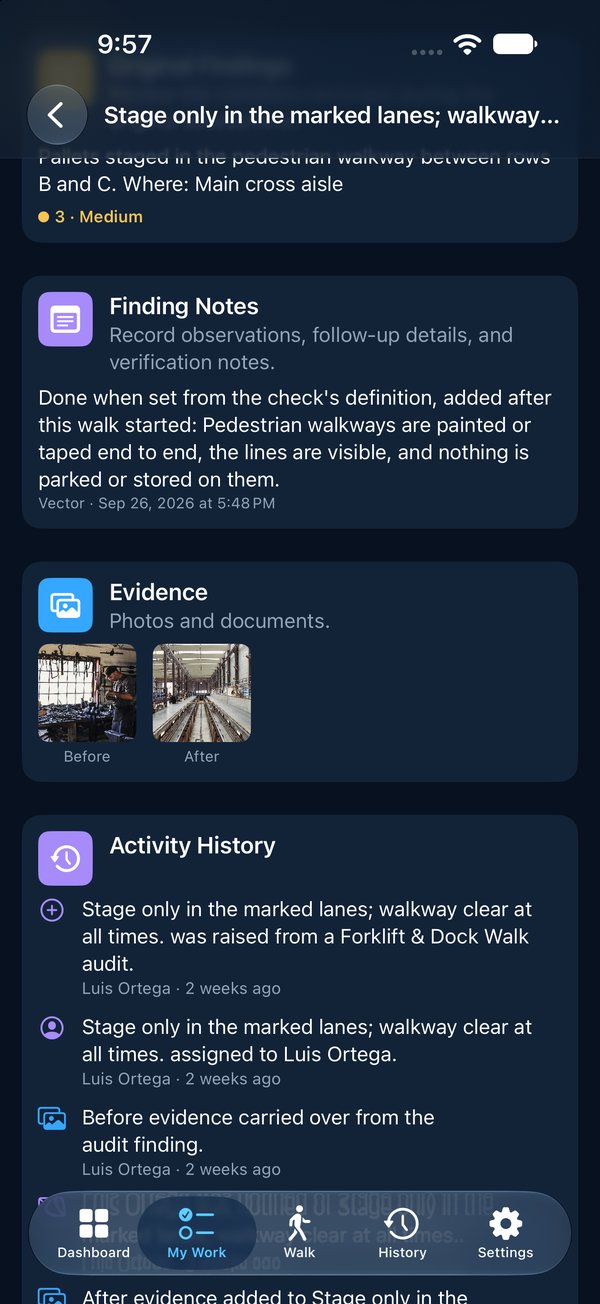
234Every photo is filed as Before (the problem), Progress (during the work), After (the fixed condition), Verification (the checker's proof) or Supporting (anything else). Vector suggests a stage from where the item is; you can change it.
Tap any photo to open it full screen with its stage, who added it and when. Pinch or double-tap to zoom. Documents open in a preview.
 1
1Press and hold a photo, then choose Withdraw Evidence. It stops showing on the item, but the record that it was attached and withdrawn is kept.
Files can be up to 15 MB. Photos, PDFs and common office documents are accepted.