Who reports to whom, handing work on, and what happens when it's late.
The org chart
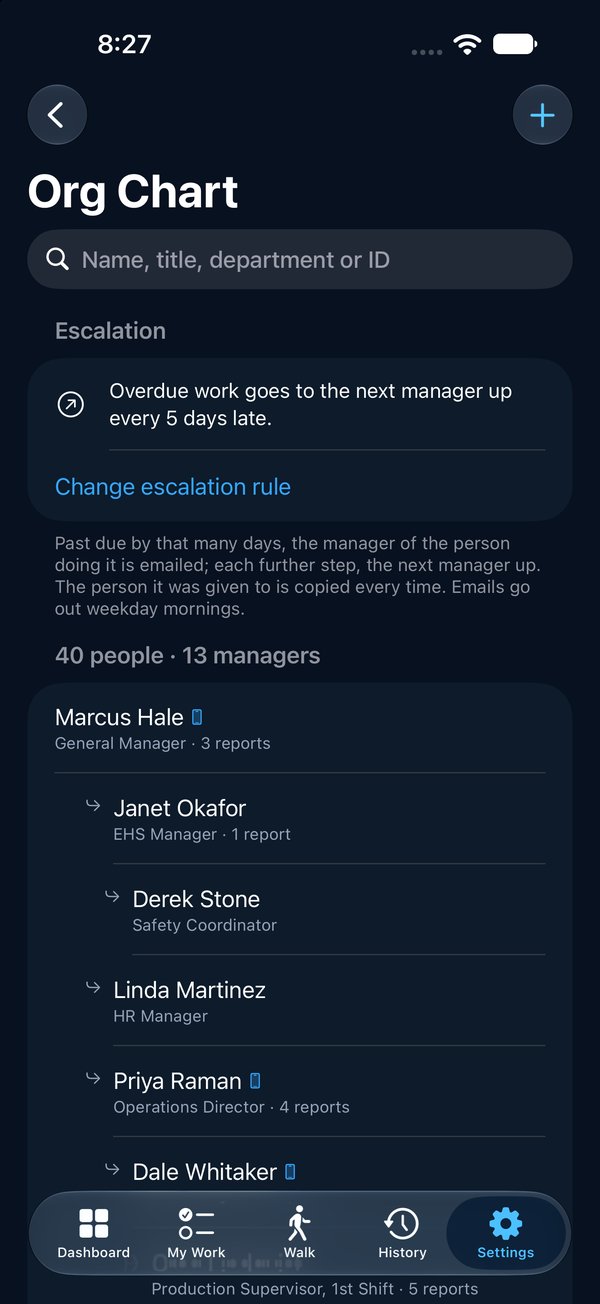
The org chart says who reports to whom. It is the path overdue work climbs. It is separate from People: most of a plant's people never sign in, but the chain still runs through them. Someone on the chart who uses the app is linked to their sign-in by email.
1See it in Settings → Org Chart, or on the website at vectorxpro.com/team → Org chart.
2Admins load it from an HR spreadsheet on the website (next section), or add and fix one person at a time in the app with +.
3Tap a person to see who they report to, who reports to them and who they escalate to.
A manager needs an email on the chart to receive escalations.
2
Import it from a spreadsheet
Export your employee list from your HR or payroll system as Excel (.xlsx) or CSV, with each person's name, who they report to, and ideally their email and employee ID. Then, on the website:
1Sign in at vectorxpro.com/team and open Org chart.
2Click Import from a spreadsheet and drop in the file.
3Check the column matching. Vector reads the headings; change any it got wrong. The manager column can hold the manager's name, email or employee ID.
4Click Check it. Nothing is saved yet: you see how many people are new, changed and leaving, and anyone whose manager wasn't found.
5Click Import.
Import again whenever HR sends a new file. People are matched by email, then employee ID, then name, so nobody is added twice. Anyone missing from the new file is marked as left, and Vector lists leavers who still own open work.
Delegate an item
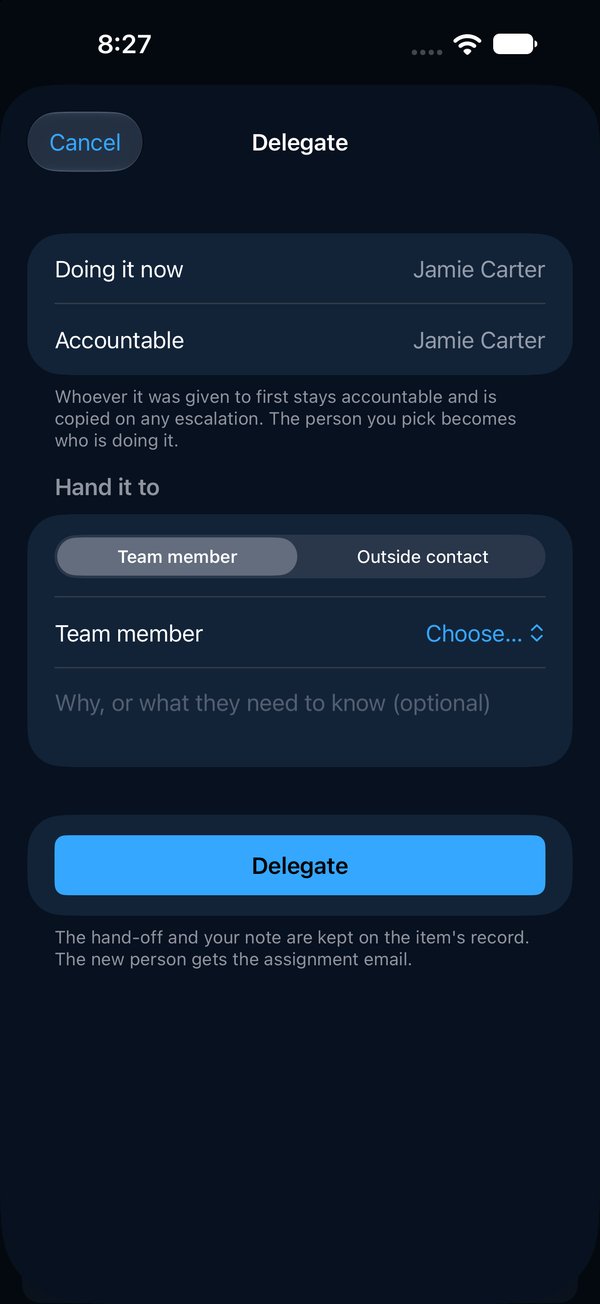
Whoever an item was given to first stays accountable for it. Delegating hands the doing to someone else: they become who is doing it, and the person who handed it on is copied on every escalation.
1Open the item and tap Delegate.
2Pick a team member or an outside contact, and add a note if it helps.
3Tap Delegate. The new person gets the assignment email.
The person doing it, the person it was given to, whoever assigned it, a site manager or an admin can delegate. Every hand-off and its note stays on the item's People & Escalation card and in its record.
23
Escalation
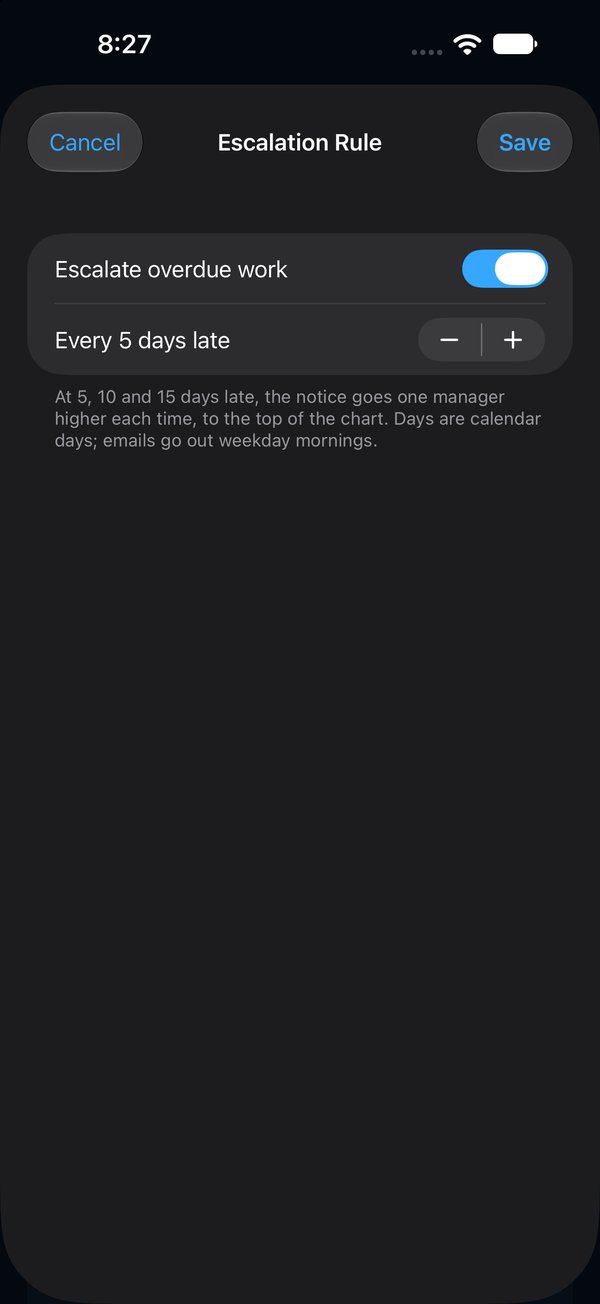
When an item is past its due date, Vector emails up the org chart. At 5 days late the manager of the person doing it hears; at 10 days, the next manager up; and so on to the top. The person it was given to is copied every time. Emails go out on weekday mornings; days late are calendar days.
1Each notice is written to the item's record: "Escalated to Greg Lindqvist (Production Supervisor), 5 days late."
2Someone marked as left is skipped: the notice goes to the next person up.
3If the person doing it isn't on the chart, or the top of the chart is reached, the accountable person and the admins are told once that there's no one further to escalate to.
4Blocked items don't escalate. Moving the due date moves the count.
Admins set the number of days, or switch escalation off, in Settings → Org Chart → Change escalation rule, or on the website's Org chart tab.

 Operations Pro
 2
2