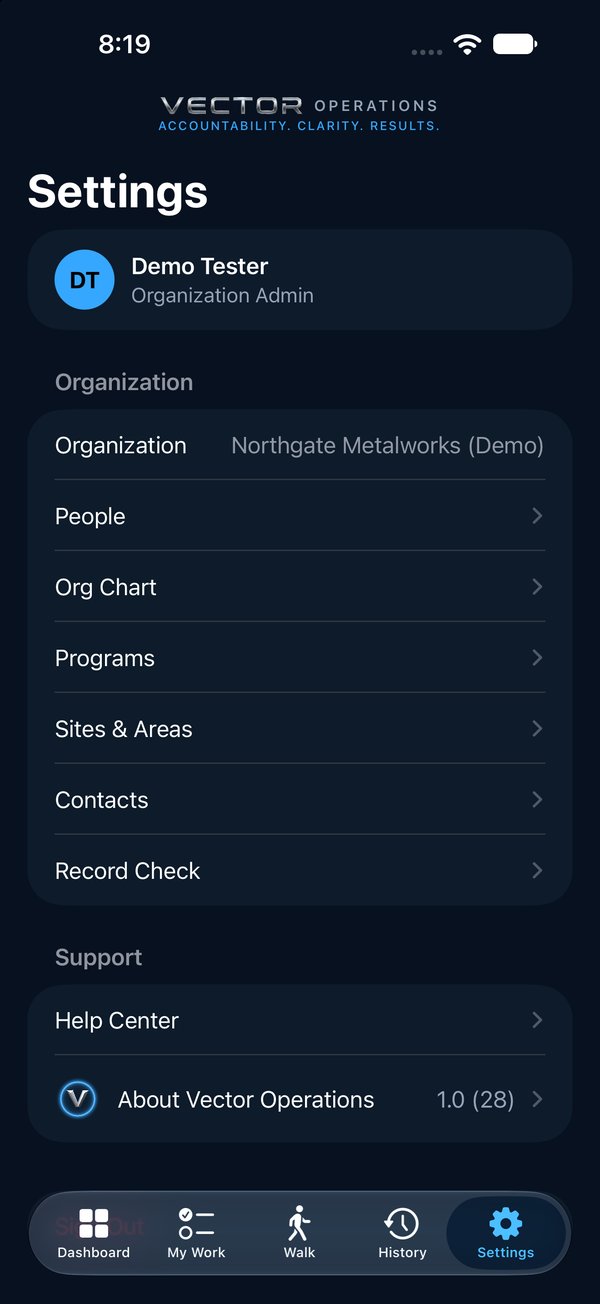
A program is a kind of work with its own checklist: 6S, safety, machine guarding and so on. Every program says what it covers, and every check says what good looks like, so the team knows exactly what it is held to. Vector comes with starter programs. Admins add their own in Settings → Programs.
1In Settings → Programs, tap + for a new program, or open one of yours and tap Edit Program.
2Choose Quick walk or Formal audit. See Quick Walks & Formal Audits for which to pick.
3Under What this covers, say what is audited, where, and against which standard.
4Tap Add Check. Write the check as a statement, such as Walkways and exits are clear.
5Under What good looks like, say what passing looks like, in plain words.
6Under More detail, add how to check it, what it's based on (required on a Formal audit) and what evidence proves it, if you like.
7Drag checks into walking order, and swipe to retire one that no longer applies.
A program with undefined checks shows Needs definitions · 3 of 8 in the list. Retired checks aren't deleted; swipe one in the Retired list to restore it.
1
Sites and areas
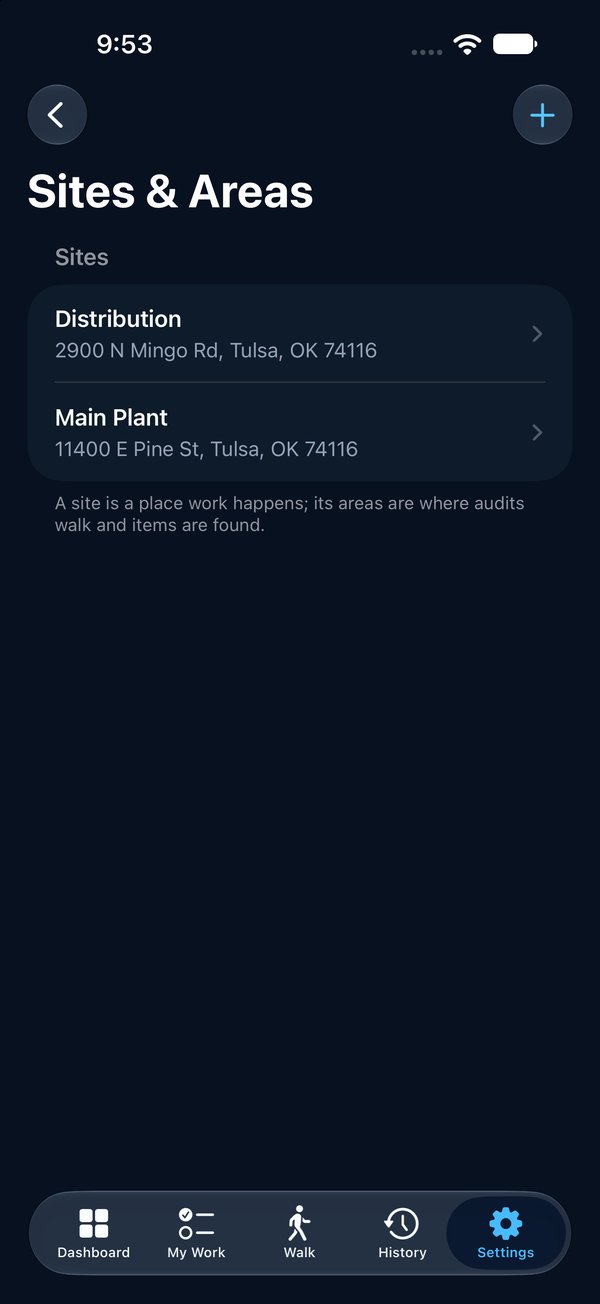
A site is a location, such as a plant or a building. Areas are the parts of it: weld, receiving, the break room. Add them in Settings → Sites & Areas. An area's name is used once per site.
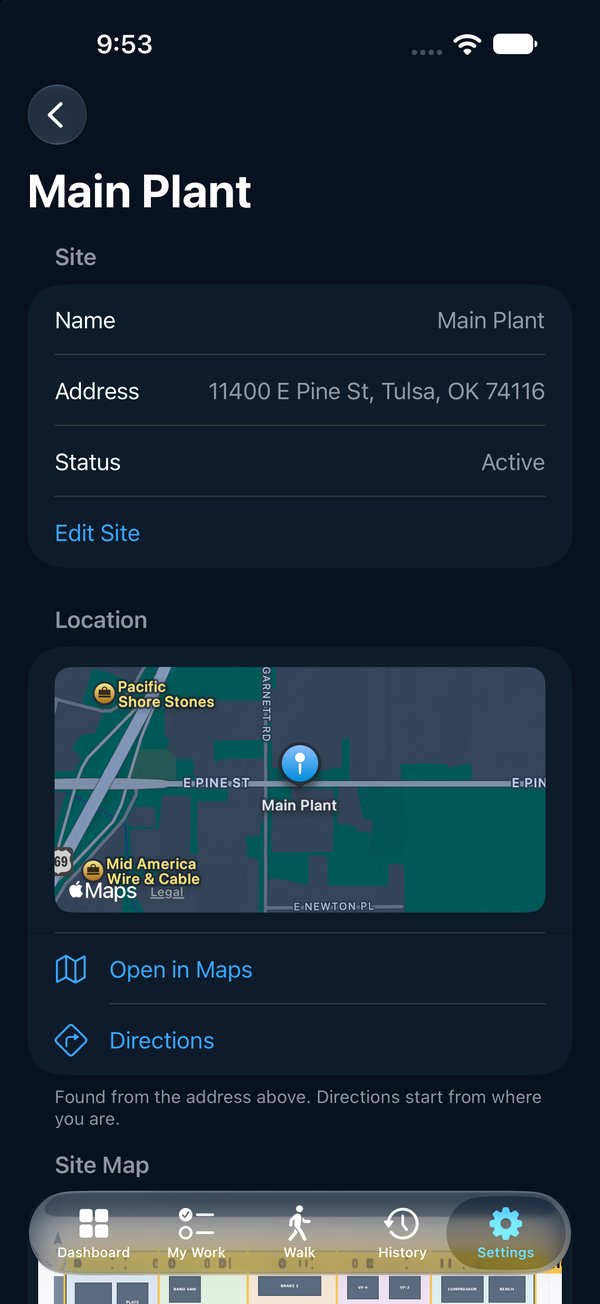
1To find a site, open it in Settings → Sites & Areas. Location shows where its address is.
2Tap Open in Maps to see it in Apple Maps, or Directions for a route from where you are.
3In the list of sites, swipe right on a site for Directions.
The map comes from the address. If the pin is in the wrong place, fix the address with Edit Site.
12
Site maps
A site map is a picture of the site, such as a photo of the evacuation plan on the wall, with each area boxed on it, so someone who doesn't know the site can find the weld bay or the break room. An admin or the site's manager sets it up.
1In Settings → Sites & Areas, open the site.
2Under Site Map, tap Add Site Map to choose a picture, or Photograph the Plan to take one.
3Under Areas, tap Mark on Map beside an area. Drag across the area to draw its box, or tap Place a Box.
4Drag the box to move it, and drag a corner to resize it. For a small room, pinch or double-tap to zoom in first. Tap Save.
5Do the same for each area. To fix one, tap Move Box.
6For a big area, tap the area and use Add Area Map to give it its own, closer picture. Pins there go on that map.
7On an open item, tap Place Pin under its map to mark where the problem is, or Move Pin to correct it. The change is kept in the item's record.
Once an area is marked, every item and walk in it shows the site map with that area lit up. Tap Show Map for full screen: pinch to zoom, drag to look around, double-tap to zoom in or out. Replace Site Map clears every box, since they were drawn on the old picture. A map you've opened once stays on your phone, so it works without a signal.
1
Contacts
Contacts are people outside your team, such as contractors and vendors, who can own an item. Add them in Settings → Contacts. One email address is one contact; entering it again finds the one already on file.

 Operations Pro
 1
1