Confirm the fix, close the item, reopen it if it comes back, or cancel it.
Verify and close
1Open an item that is Pending Verification.
2Tap Verify & Close.
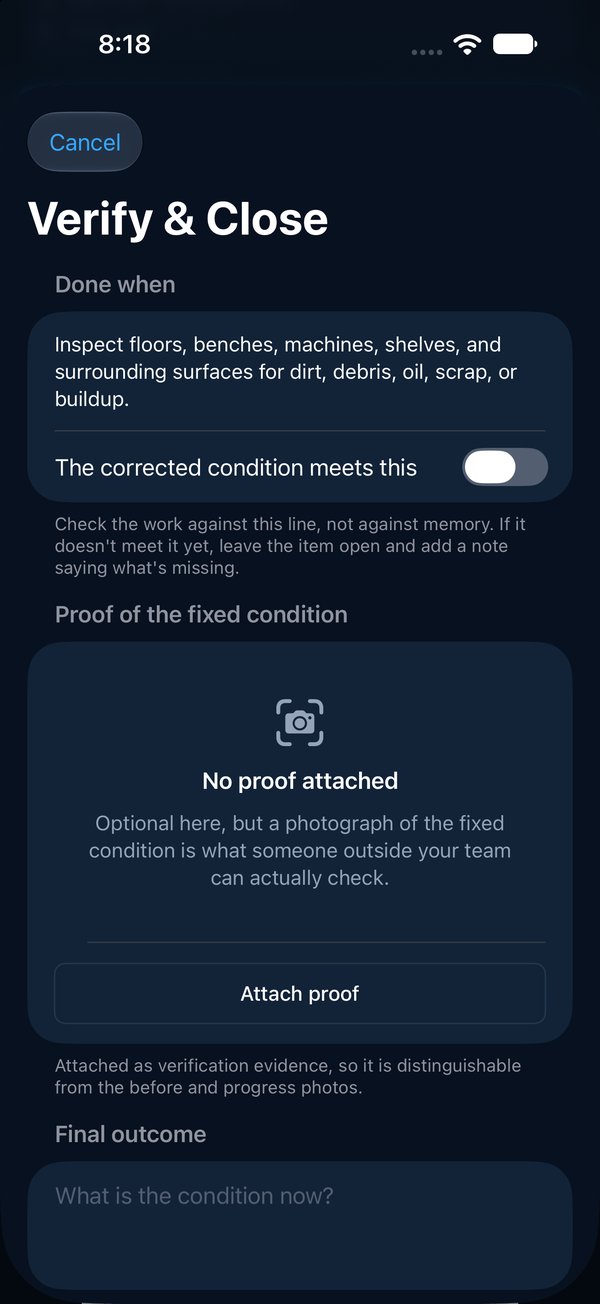
3Read Done when at the top, check the fixed condition against it, and switch on The corrected condition meets this. If it doesn't, leave the item open and add a note saying what's missing.
4Under What is the condition now, write the final outcome.
5Under How was this verified, say how you checked it.
6Attach proof of the fixed condition if it isn't already there.
7Tap Verify & Close.
346
Proof
Some programs require a photo of the fixed condition before an item can close. Even where it's optional, it's the one thing someone outside your team can check for themselves.
Closing your own work
The owner can close their own item. It's allowed, and it's marked Self-verified by the owner wherever the closure appears. The same goes for a manager who handed an item on and then closes it: they are checking work they answer for, so it's marked self-verified too. A check by someone else carries more weight with an outside auditor.
Reopen an item
1Open the closed item and tap Reopen Item.
2Say why it's being reopened, then tap Reopen Item.
The earlier closure isn't erased. It stays in the history, with the reason it was reopened.
Cancel an item
For an item raised by mistake, a duplicate, or work nobody needs any more. Nothing is deleted: a canceled item stays on the record, with who canceled it, when and why.
1Open the item and tap Cancel Item.
2Say why it's being canceled, then tap Cancel Item.
3On a laptop: vectorxpro.com/team → Reports → Items, then Cancel on the item's row.
Whoever raised or assigned the item, its site's manager or an admin can cancel it, while it's open. The owner alone can't. Canceling is final; if the work is needed after all, raise a new item.

 Operations Pro
 346
346