Admins invite anyone. Site managers invite auditors and action owners to the sites they manage. The person gets an email from Vector with a button that opens the app, where they choose a password, and a 6-digit code in case the button doesn't open it. You can also do this on the website: sign in at vectorxpro.com/team.
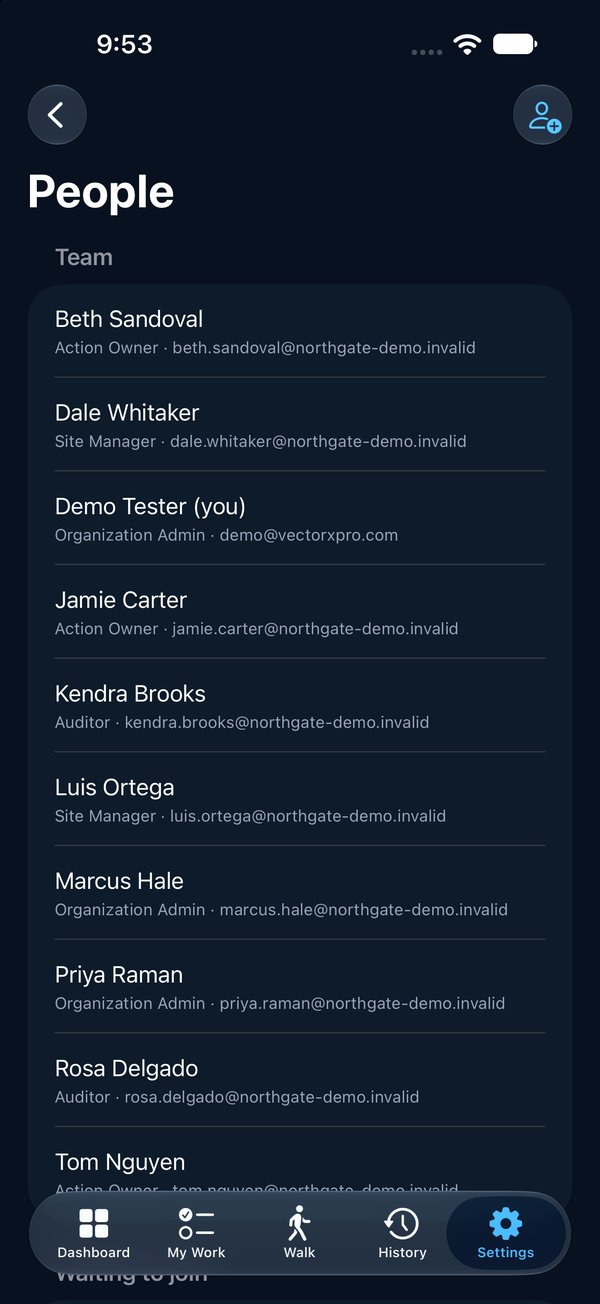
1Go to Settings → People.
2Tap the invite button at the top.
3Enter their email, choose a role and the sites they can see.
4Tap Send.
2
Pending invitations
Invitations waiting for an answer are listed under Waiting to join. Swipe left on one to Send Again or Revoke it. An invitation lasts 14 days, and each emailed link and code works once, within 24 hours. Sending again cancels the earlier email's link and code, so tell them to use the newest email: its subject shows its code.
Vector is invite-only. If you signed in and see no invitation, ask your admin to invite that exact email address.
Joining with a code
The button in your invitation email opens Vector on your iPhone. If Vector isn't installed yet, it opens a page on vectorxpro.com instead that says what to do. Either way, you can use the code instead.
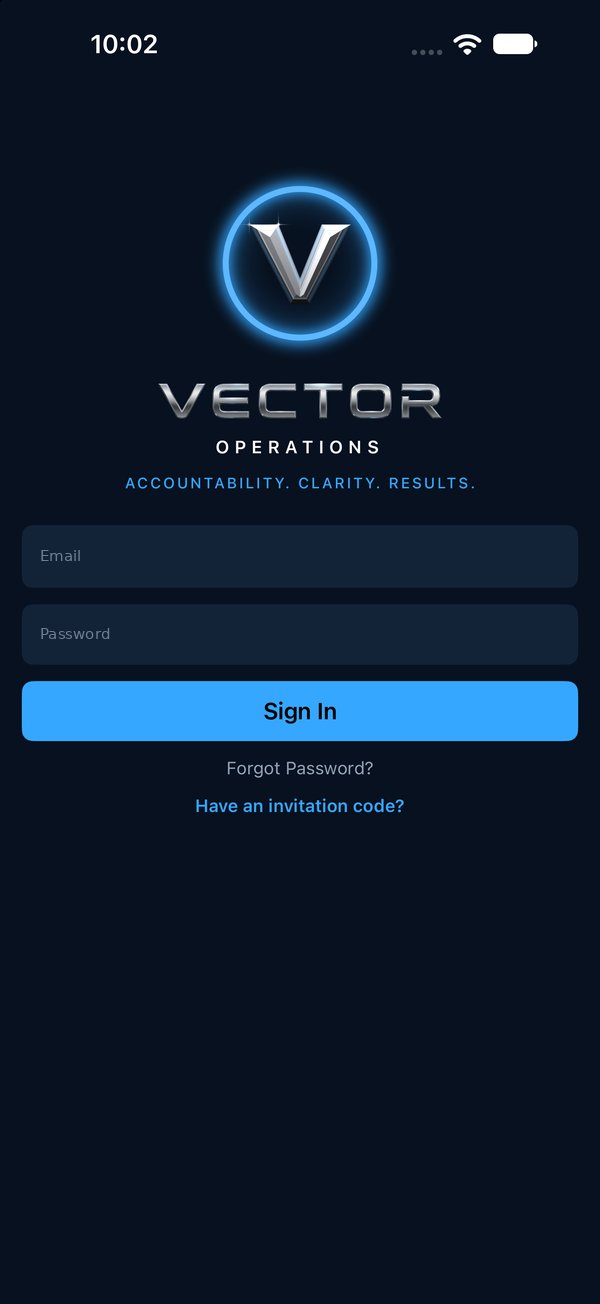
1Open Vector. On the sign-in screen, tap Have an invitation code?
2Enter the email address the invitation was sent to, and the 6-digit code from the newest invitation email.
3Tap Continue, then choose your password.
1
Roles
Organization AdminRuns the organization, its people, programs and sites

 Operations Pro
 2
2