Help Center / Audits

Audits

Walk an area and flag what you find, in any order.

The Walk tab

Walk, in the middle of the tab bar, puts what you're doing now first. A walk you're leading or on is at the top, with Flag a Finding one tap away. Below it: announced audits that can start today, team walks under way that you can join, and Start a Walk. Raise one item without a walk is at the bottom, for a single thing seen outside a walk.

Open the walk from its card for the team, every finding, Not applicable and Review & Submit.
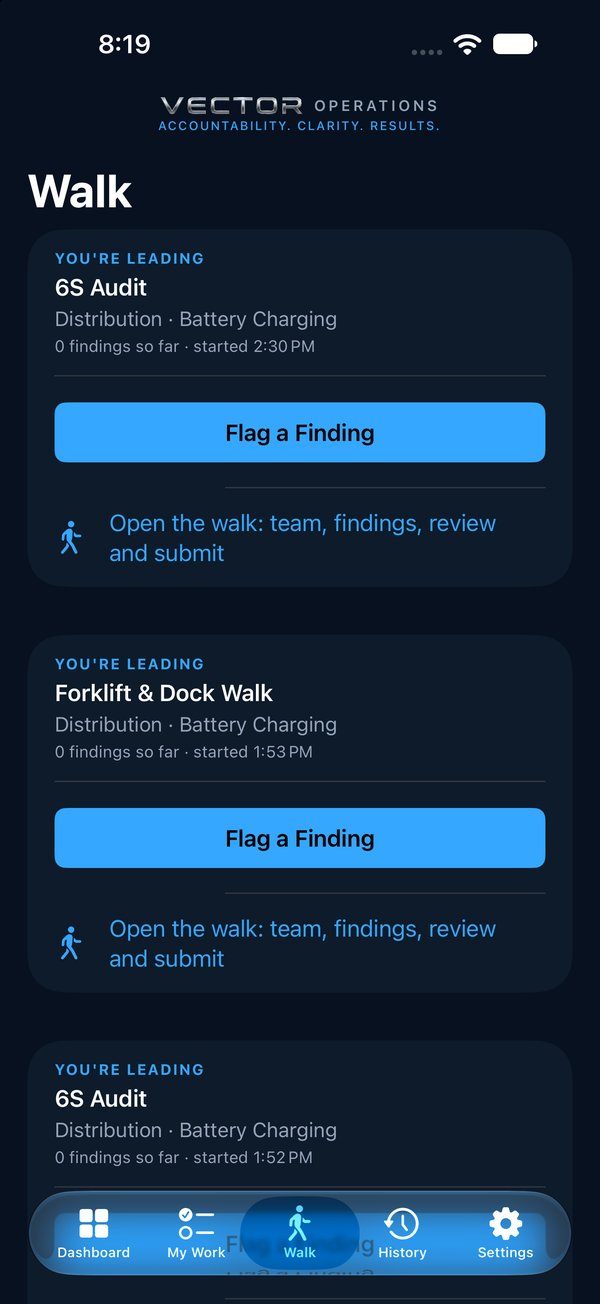
The Walk tab: walks you're leading, each with Flag a Finding and Open the walk1
  1. 1A walk you're leading, with Flag a Finding one tap away.
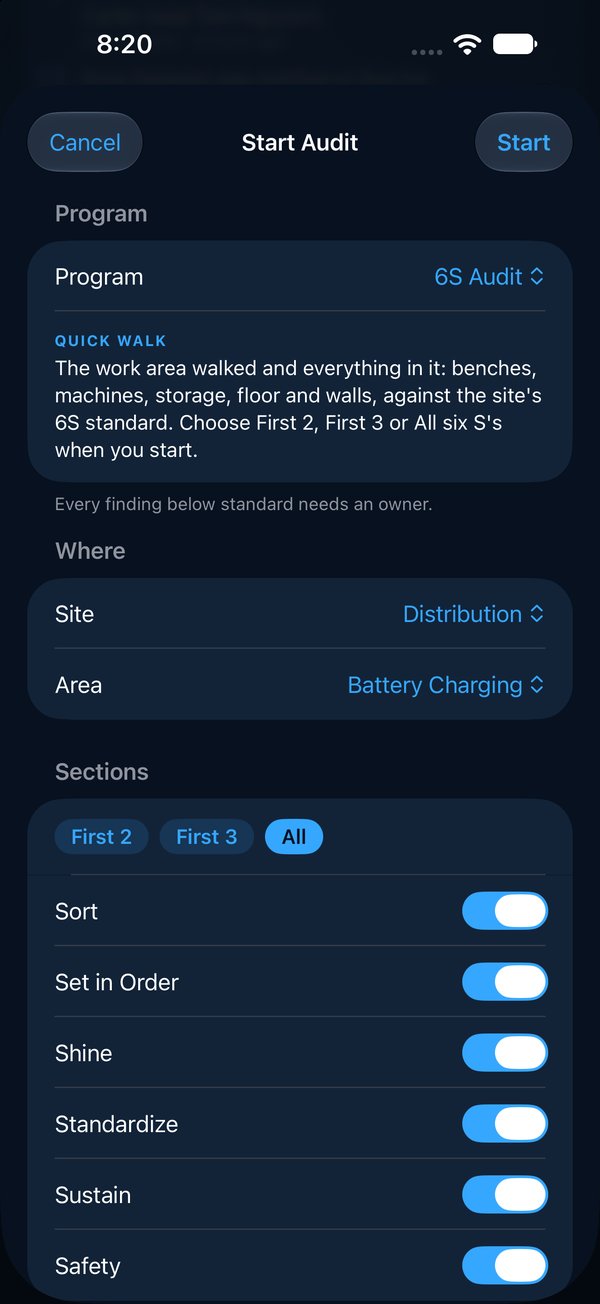
Start a walk

  1. 1Tap Walk in the tab bar, then Start a Walk. (Start Audit on the Dashboard does the same.)
  2. 2Pick the site, the area and the program. Under the program, read what it covers and whether it is a Quick walk or a Formal audit.
  3. 3Under Sections, choose what's in play. First 2 is a 2S walk, First 3 a 3S walk, All the whole program.
  4. 4Tap Start.

Starting needs a connection for a moment. The criteria and their definitions are fixed when the walk starts; editing the program later won't change it. A Quick walk warns you if some checks don't say what good looks like yet. A Formal audit won't start until every check does.

Start Audit sheet: program and what it covers, site, area and sections234

Flag a finding

Walk the area and flag what you see, in whatever order the floor shows it to you. Each finding names one criterion, the standard it falls short of.

  1. 1Tap Flag a Finding. The camera opens first; take a photo, or tap Cancel to skip it.
  2. 2Choose the section, then the criterion. Under it, What good looks like says exactly what the criterion holds the area to; tap More detail for how to check it and what it's based on.
  3. 3Choose how bad: Critical, High, Medium or Low.
  4. 4Say what's wrong and, if it helps, where.
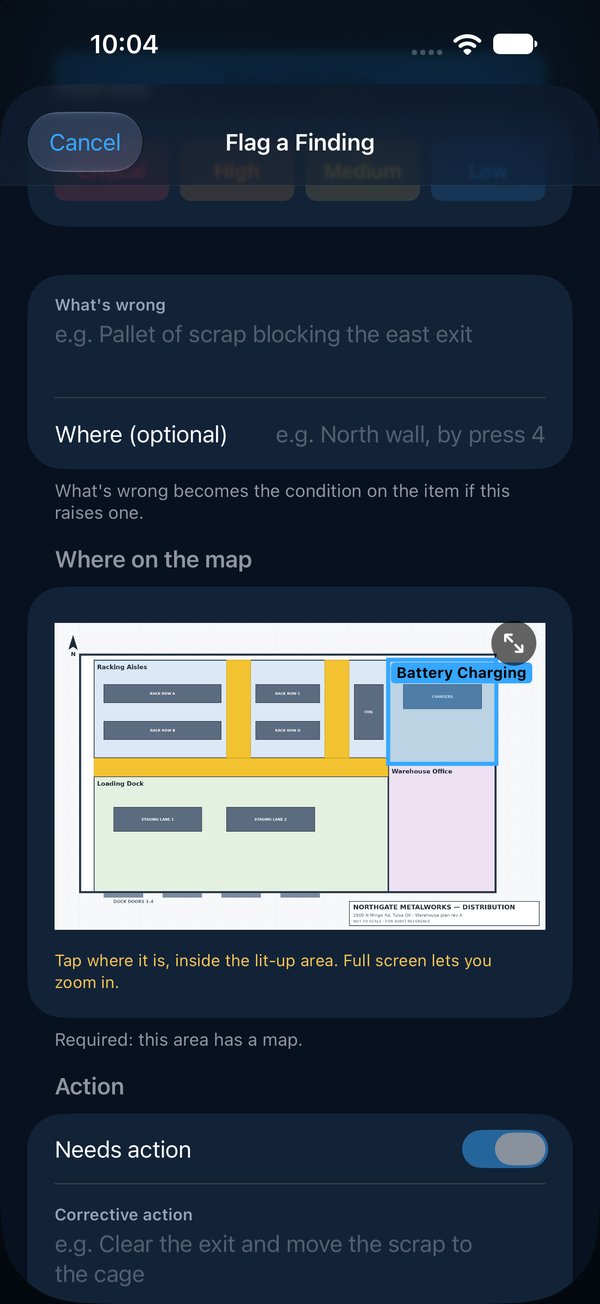
  5. 5If the area has a map, tap where it is on the map under Where on the map. It's required there, and the pin goes with any item the finding raises. To zoom in, tap the full-screen button in the map's corner.
  6. 6Choose the owner and due date under Action. Most programs give every finding an owner, so Needs action is already on; where it isn't, turn it on if someone has to fix it.
  7. 7Tap Save & Flag Another to keep going, or Save.
Flag a Finding sheet: photo, criterion, how bad, what's wrong and where on the map456

No signal

Keep walking. Every finding and photo is saved on your phone the moment you tap Save, and sent when a signal returns. The line at the top of the walk says what is still waiting. A walk you've opened once with a signal opens again without one.

Starting a walk and submitting it need a signal for a moment. Submit waits until everything on the phone has been sent.

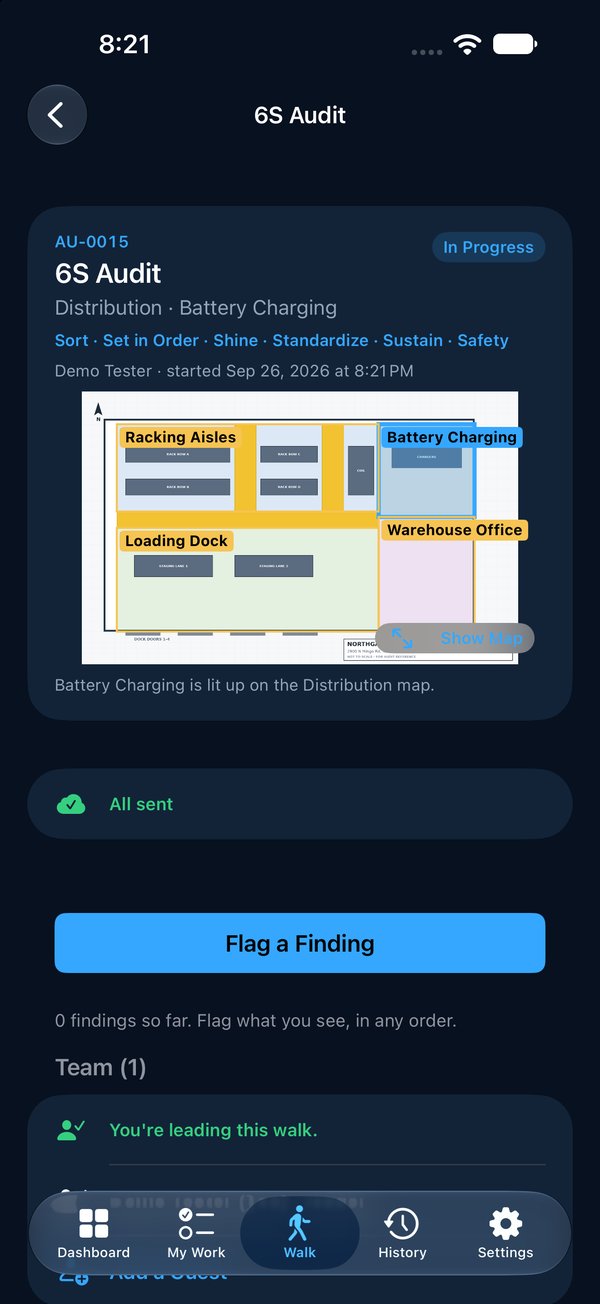
Audit AU-0015 in progress, with its area lit up on the site map, All sent, Flag a Finding and the team1
  1. 1All sent: nothing is waiting on this phone.

Change your mind

Tap a finding to edit it until the walk is submitted. Swipe left to withdraw one flagged by mistake. A withdrawn finding stays on record and counts for nothing. On a team walk you edit only your own findings.

Walk as a team

Several people can flag findings on one walk, each from their own phone. The person who started it leads it: they add guests, mark sections Not applicable, and submit. Everyone else joins before flagging, admins included. Under Team, the walk says where you stand, and your name is marked (you). Everyone's findings appear on everyone's phone within 30 seconds, marked with who flagged them.

  1. 1The leader starts the walk as usual.
  2. 2Everyone else finds it on the Walk tab under Team walks under way, opens it and taps Join This Walk. Anyone with access to the site can join.
  3. 3An admin joins too before flagging. Without joining, an admin can still add guests, withdraw findings and submit.
  4. 4For someone without a Vector account, the leader taps Add a Guest and types their name. Guests are listed in the pack but don't flag findings.
  5. 5Flag findings as usual. You can edit only your own; the leader can withdraw anyone's.
  6. 6When the team is done, the leader taps Review & Submit.

The walk pack lists the whole team and who flagged each finding.

Audit AU-0015 in progress, with its area lit up on the site map, All sent, Flag a Finding and the team2

How a walk is scored

Each criterion scores the average of its findings, as a whole number, with a half rounding down to the worse score. When one finding is worse than the average, it is shown beside it, such as 3 · Medium, worst: Critical. A criterion with no findings is recorded as meeting the standard (5), except on a walk ended as Not ready, where it is recorded Not assessed and left out of the score. A section marked Not applicable is left out too.

1Critical
2High
3Medium
4Low
5Meets the standard

A section with no findings earns a Clean badge, and a walk with none at all earns Clean walk. Keeping an area right all month is what the badge is for.

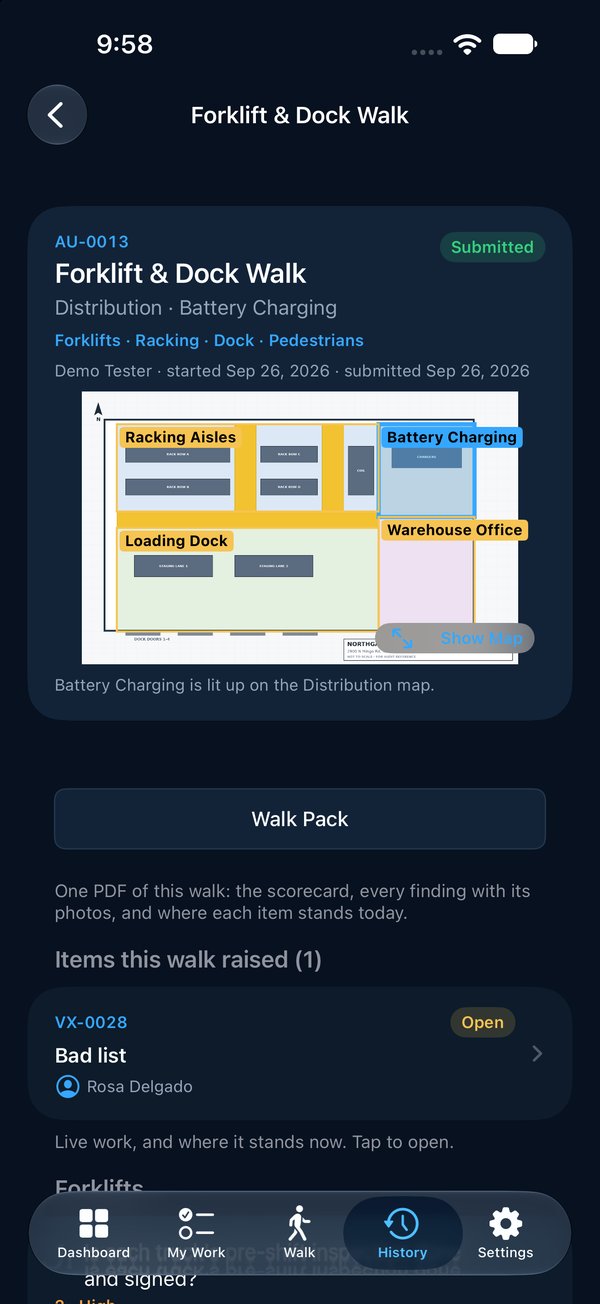
A submitted walk: each criterion with its score, such as 4 · Low and 1 · Critical, and the item each finding raised

Review and submit

Before you submit, Vector says how many criteria have no findings and will be recorded as meeting the standard. Submitting raises one item for each finding that needs action, with its photos, and locks the walk.

  1. 1Under Not applicable here, switch on any section that truly doesn't apply to this area.
  2. 2Tap Review & Submit and check each criterion's result.
  3. 3Tap Submit, then Submit again to confirm.
  4. 4Vector takes you back to the walk, now locked, and says how many items were raised.

Find past walks

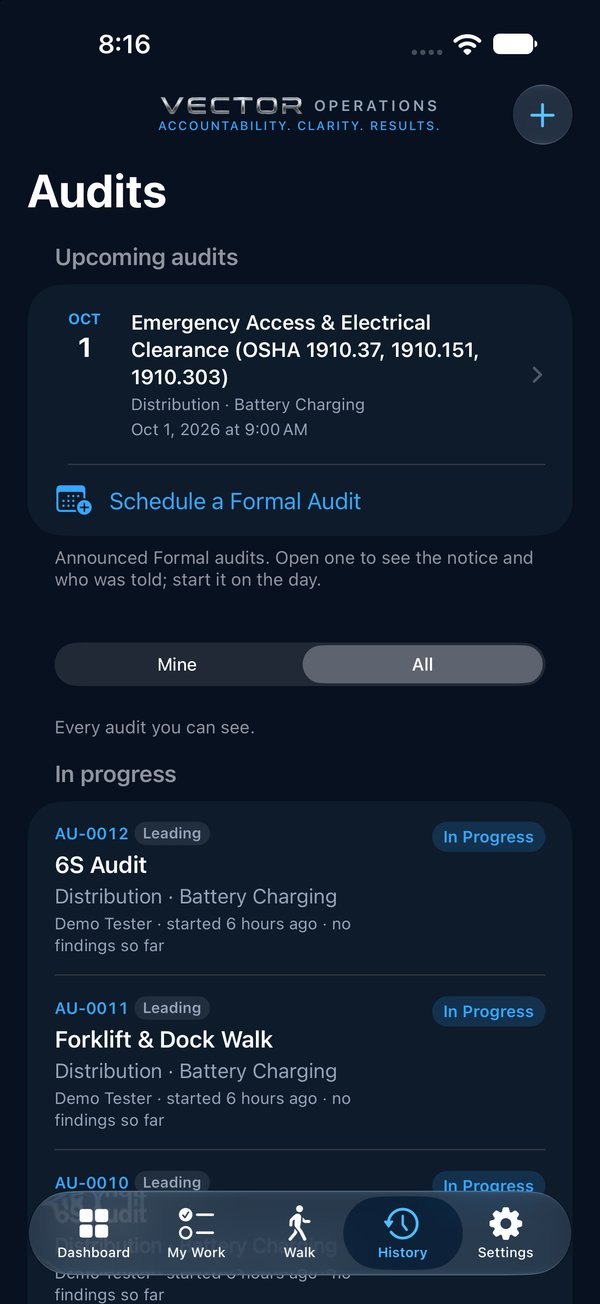
The History tab lists walks in progress and submitted. Every walk has a number, such as AU-0012, shown in the list and at the top of the walk: quote it so everyone knows which walk you mean. Tags say which walks are yours: Leading (Led once submitted) or On team, and Team of 3 when more than one person was on it. Choose Mine to see only walks you lead or joined, or All for every audit you can see. A submitted walk shows each criterion's result and links to the items it raised.

The History tab: Upcoming audits with Schedule a Formal Audit, and audits in progress12
  1. 1Mine or All.
  2. 2Each walk's number, its tags (Leading, Team of 3) and where it stands.

Cancel a walk

For a walk started by mistake, or a duplicate. Nothing is deleted: the walk stays in History under Canceled, with who canceled it, when and why, and it raises no items.

  1. 1Open the walk and tap Cancel Walk, at the bottom.
  2. 2Say why it's being canceled, then tap Cancel Walk.
  3. 3On a laptop: vectorxpro.com/team → Reports → Walks, then Cancel on the walk's row.

Only a walk that hasn't been submitted, by its leader, the site's manager or an admin. A submitted walk is the record; cancel the items it raised instead. An announced audit ends as Not ready.