Capture something that needs attention, and give it to someone.
Raise an item
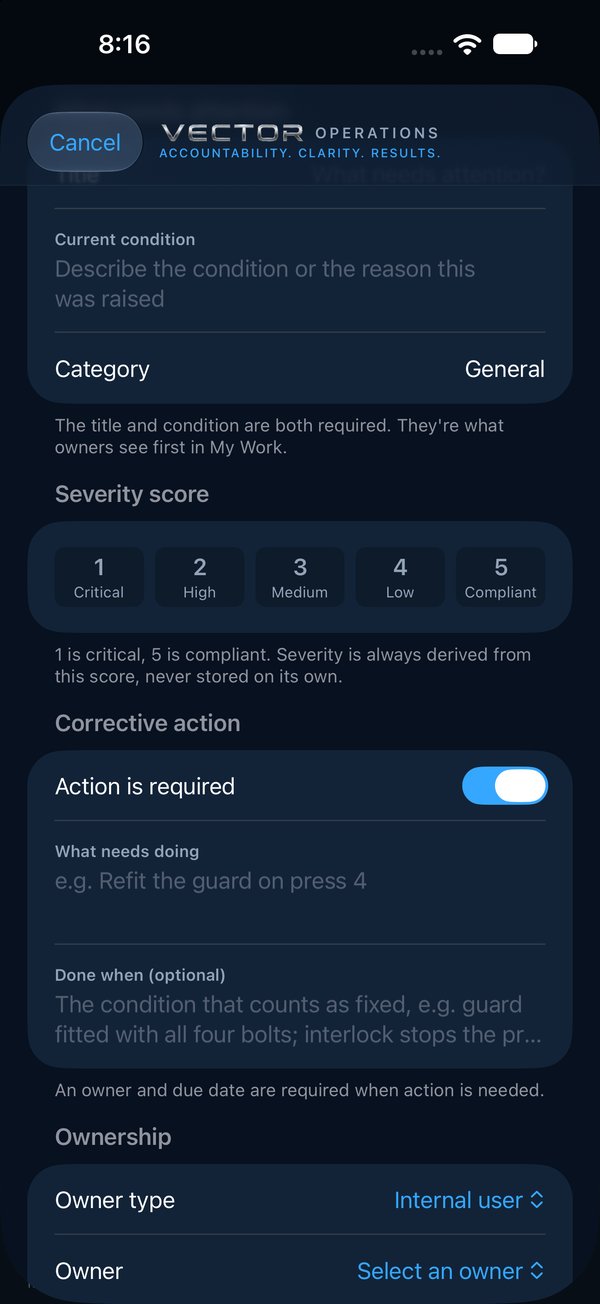
1On My Work, tap + (or on the Dashboard, tap Raise an Item; or on Walk, tap Raise one item without a walk).
2Under What needs attention, give it a short title and describe the condition you see.
3Pick the site and, if it helps, the area.
4Leave Action is required on if someone has to fix it, and say what needs doing.
5Under Done when, say what counts as fixed, such as Guard refitted with all four bolts; interlock stops the press.
6Choose the owner and, if you want one, a due date.
7Tap Create Item.
The title and the condition are what the owner reads first in My Work. Write them for someone who wasn't there.
245
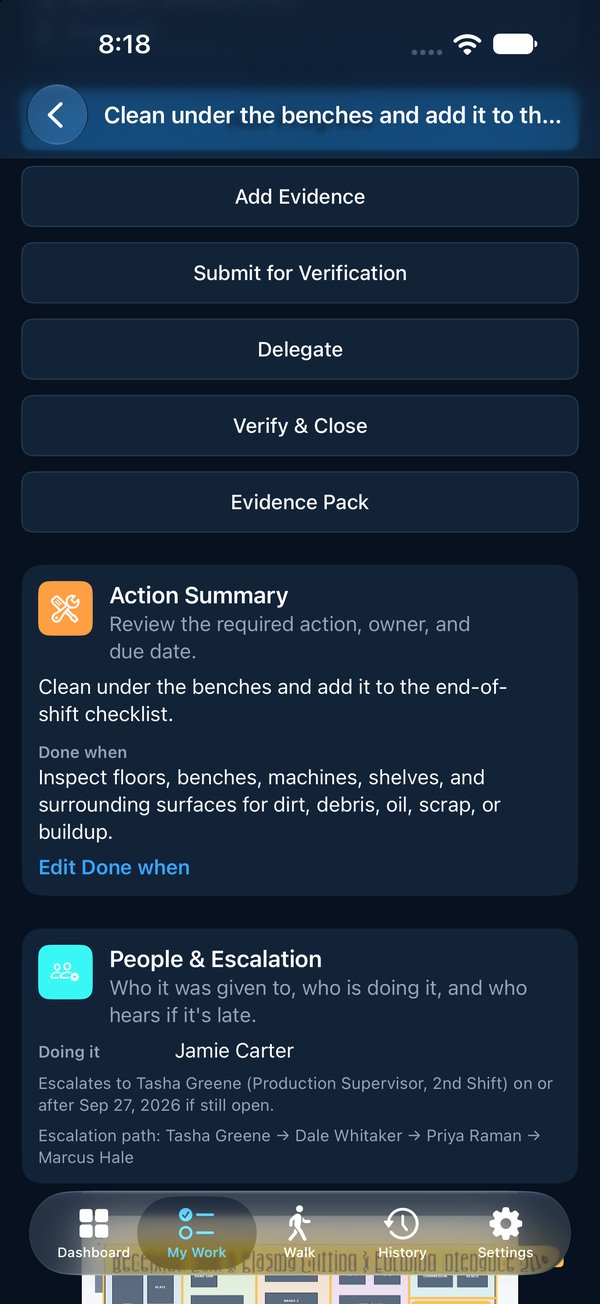
Done when
Done when is the condition that counts as fixed. The owner works to it and the person who verifies checks against it, so nobody argues later about whether it was really done. An item raised from a walk takes it from the check's What good looks like; you can make it more specific. It is required on items from a Formal audit.
The owner can't change it. Whoever raised or assigned the item, the site's manager or an admin can, with Edit Done when on the item, until it closes. Every change is written to the item's notes.
1
1Done when on the item. Whoever assigned it can change it with Edit Done when.
Owners inside and outside your team
Set Owner type to Internal user for someone on your team, or External person for a contractor or vendor from your contacts. An item that needs action must have an owner.
Telling the owner
With Notify the owner on, Vector emails them when you create the item. They are emailed once per assignment: editing the item later doesn't email them again, but giving it to someone new does.
Add a photo straight after saving. A picture of the problem saves a phone call.
Priority and programs
Priority runs Critical, High, Normal and Low. The program says what kind of work this is (6S, safety and so on). A task that doesn't belong to a program goes under Direct actions.

 Operations Pro
 245
245